Documentation
Getting Started
Devices and Assets
Publishing and Display
Scenes and Patrol
Management and Settings
Troubleshooting and Support
Adding Devices
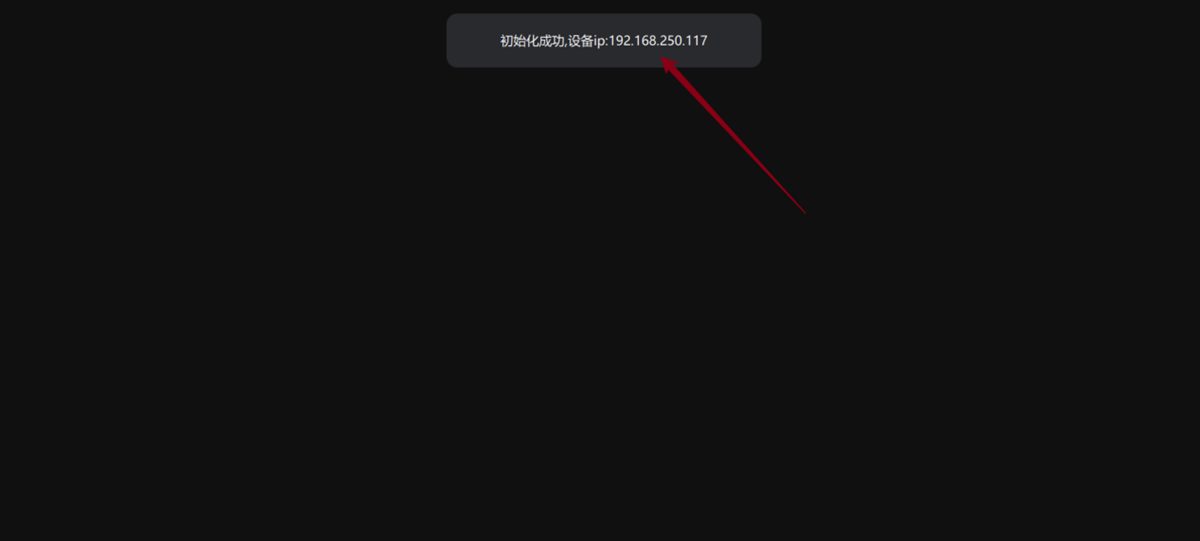
1. Open the installed display terminal MediaServer
2. Open the installed client MediaControl
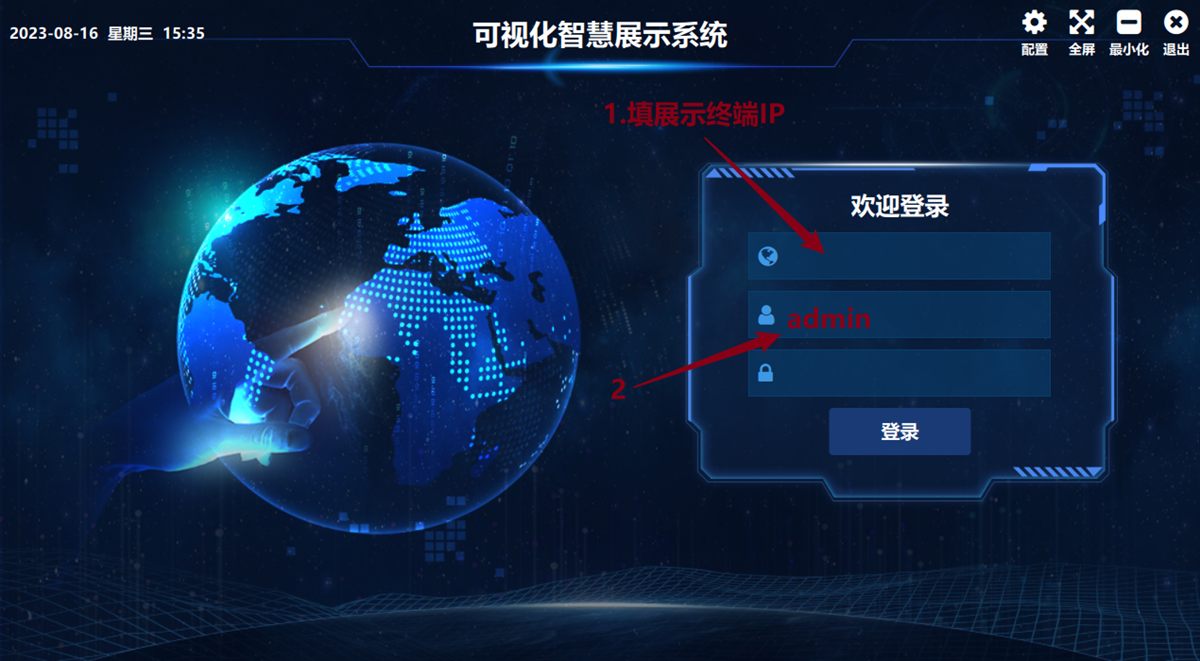
note
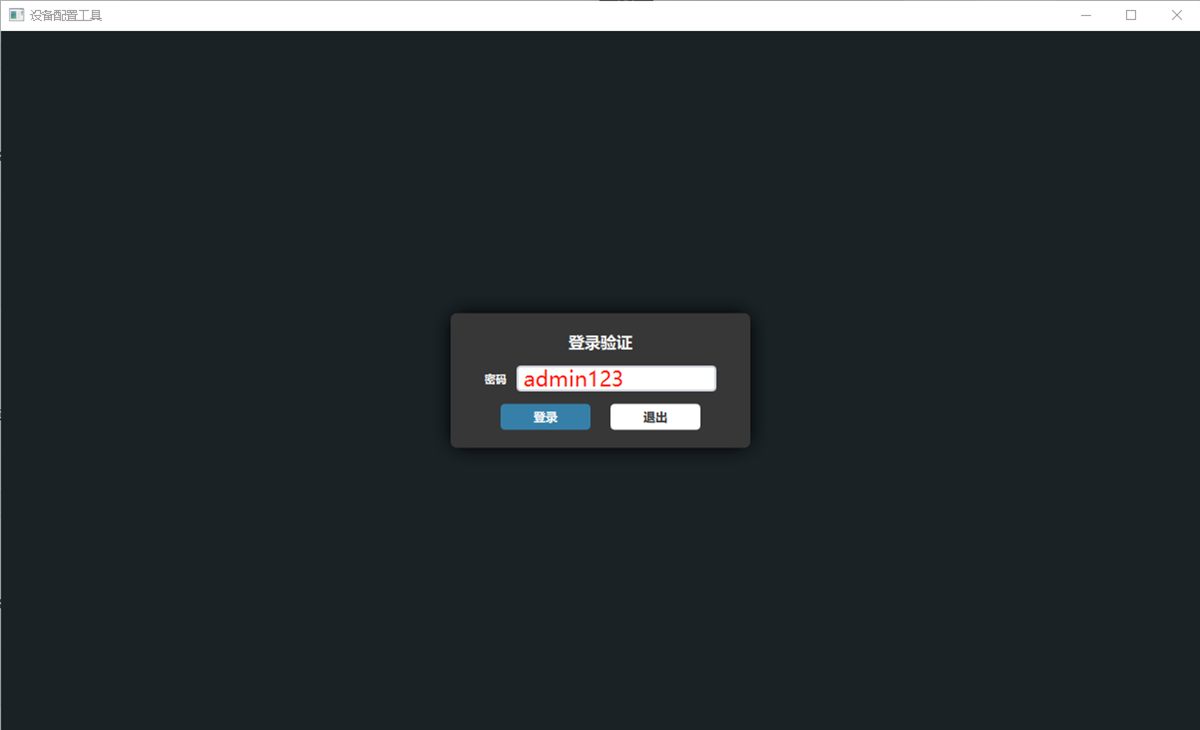
If you do not know the terminal IP address, click the configuration button in the top-right corner of the sign-in page.

Enter the verification password: admin123
In the device configuration tool, click 搜索(Search) to list every online display terminal on the local network.
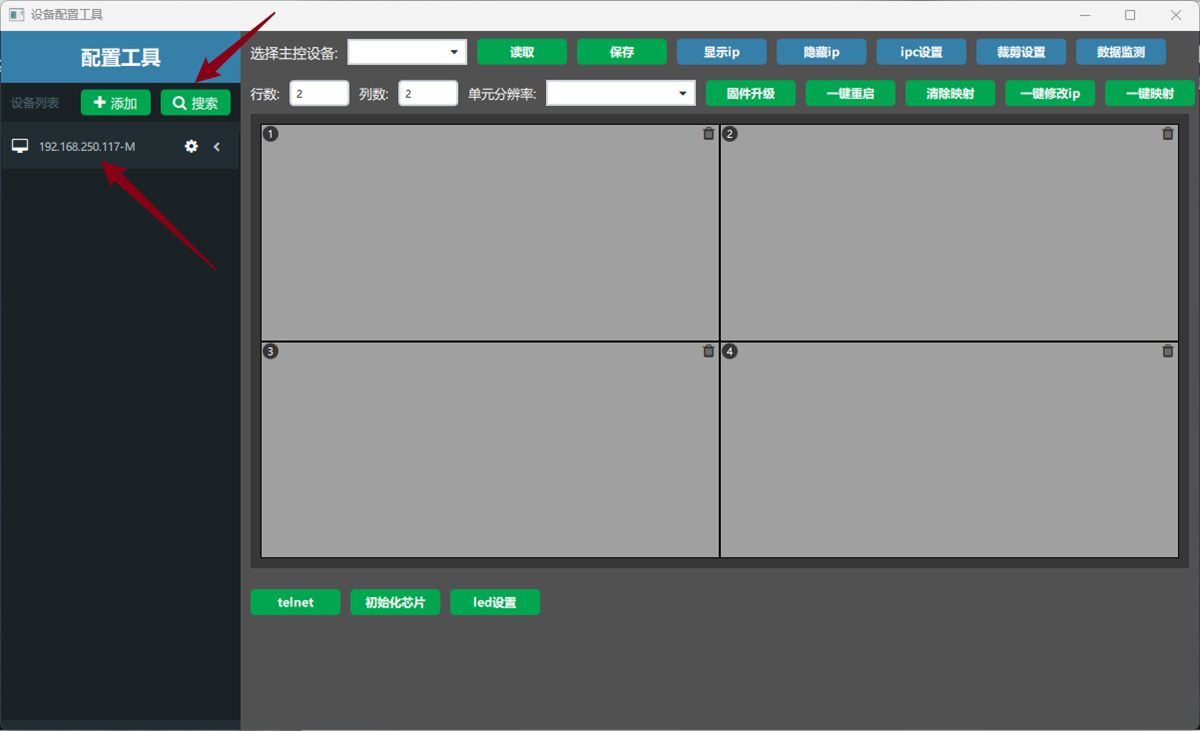

3. Add the device
- ① Click the back button in the top-right corner, ② click the first edit icon in the bottom-right corner, ③ click the edit icon below the center icon, ④ click 搜索设备(Search Devices) to open the add-device page
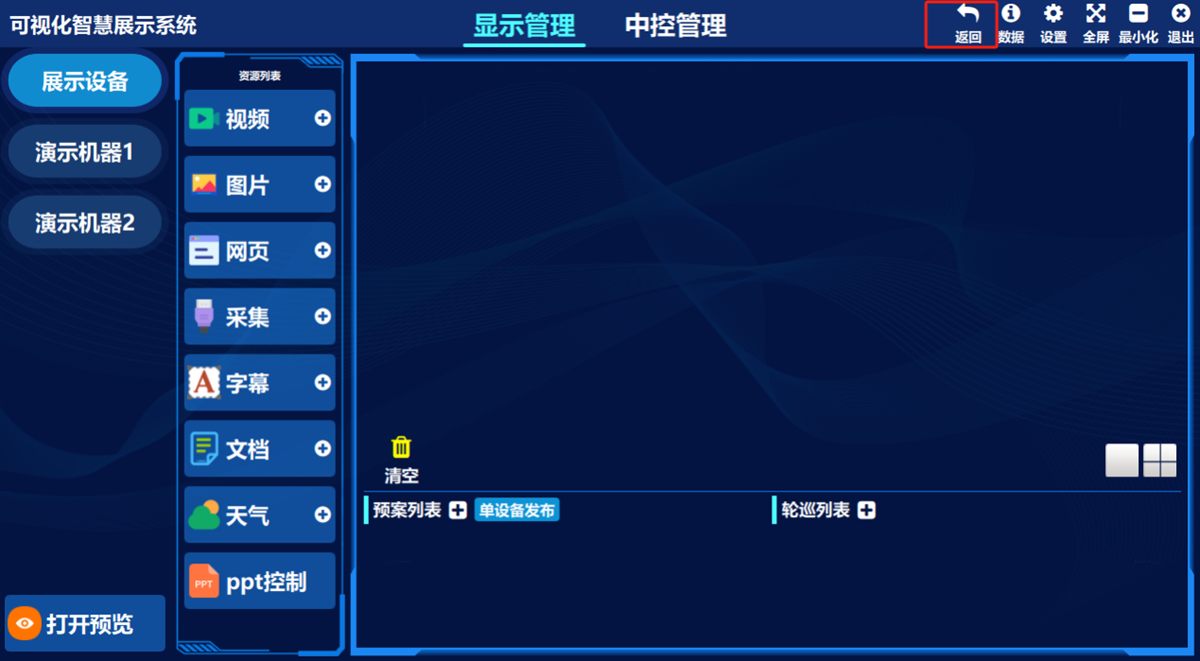
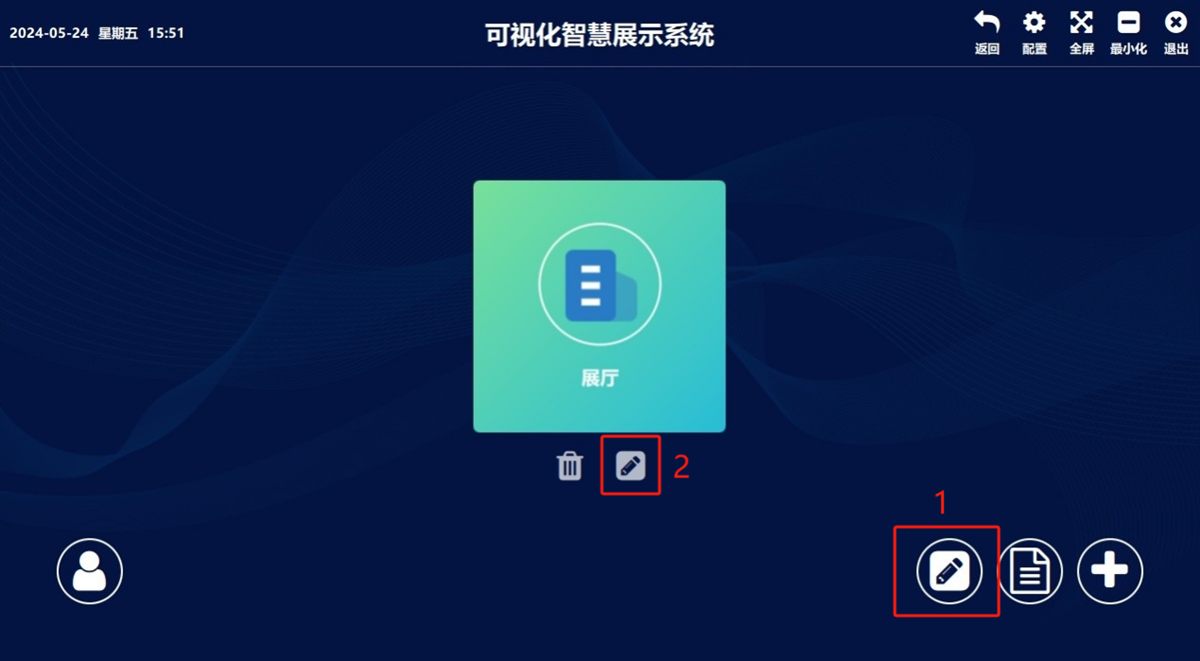
Device search screen
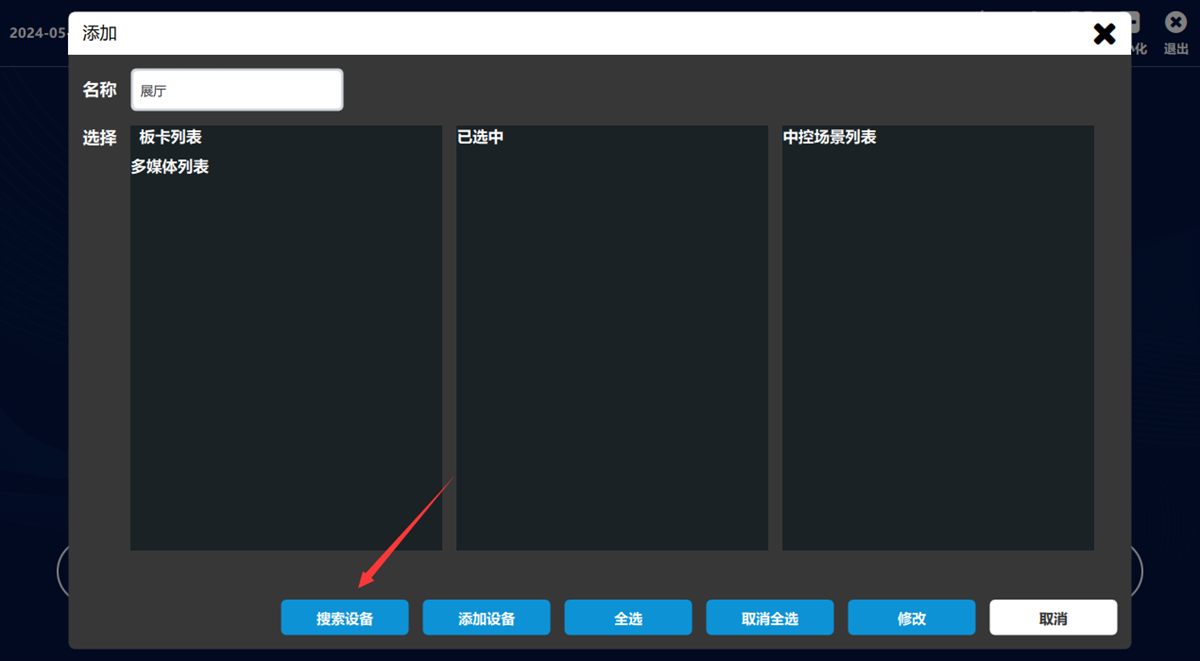
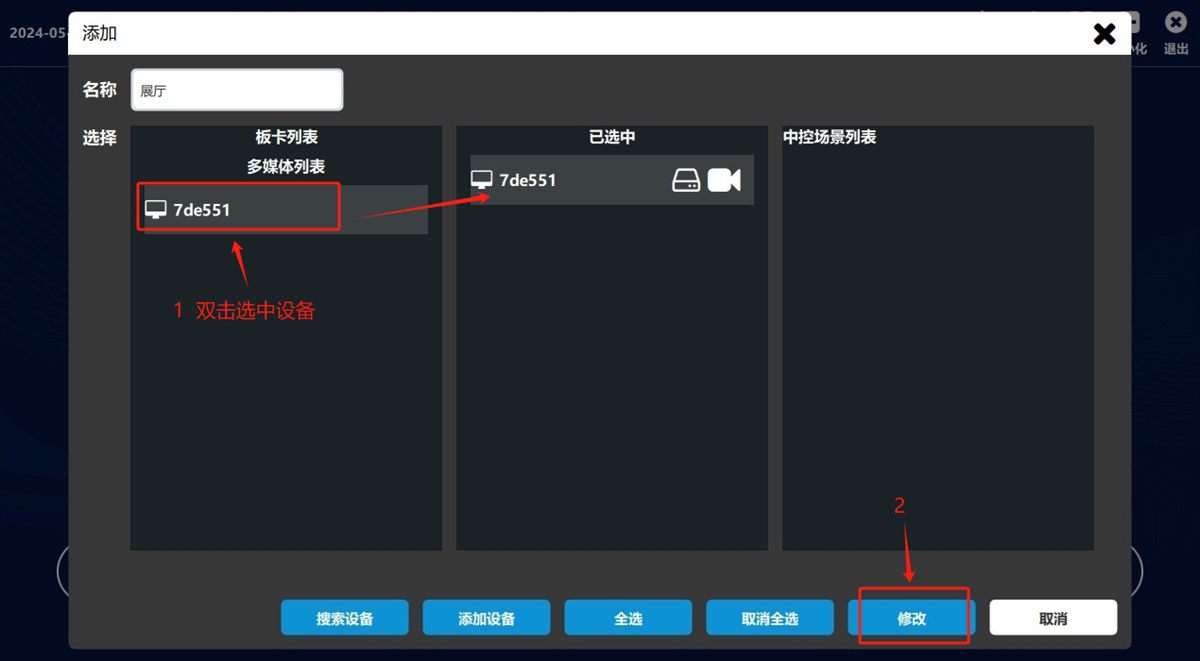
- ① Click 搜索设备(Search Devices) in the bottom-left corner, select the device you want to add after the search, optionally set a custom device name, then click 增加(Add)
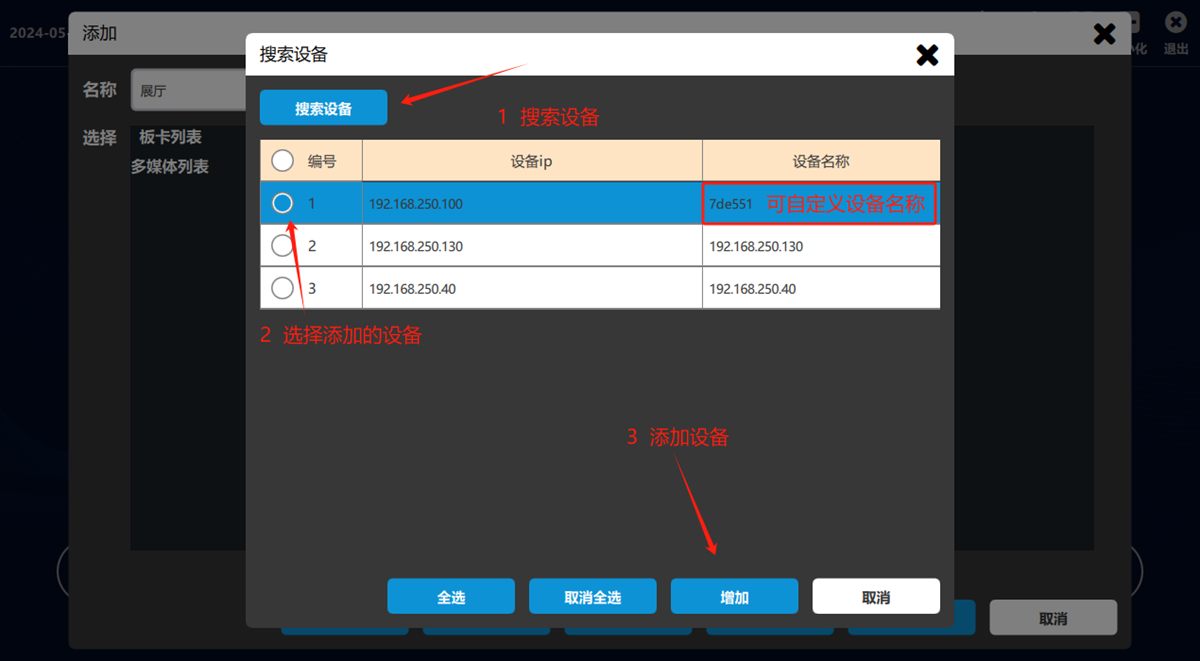
Double-click the device in the device list and click 修改(Modify).
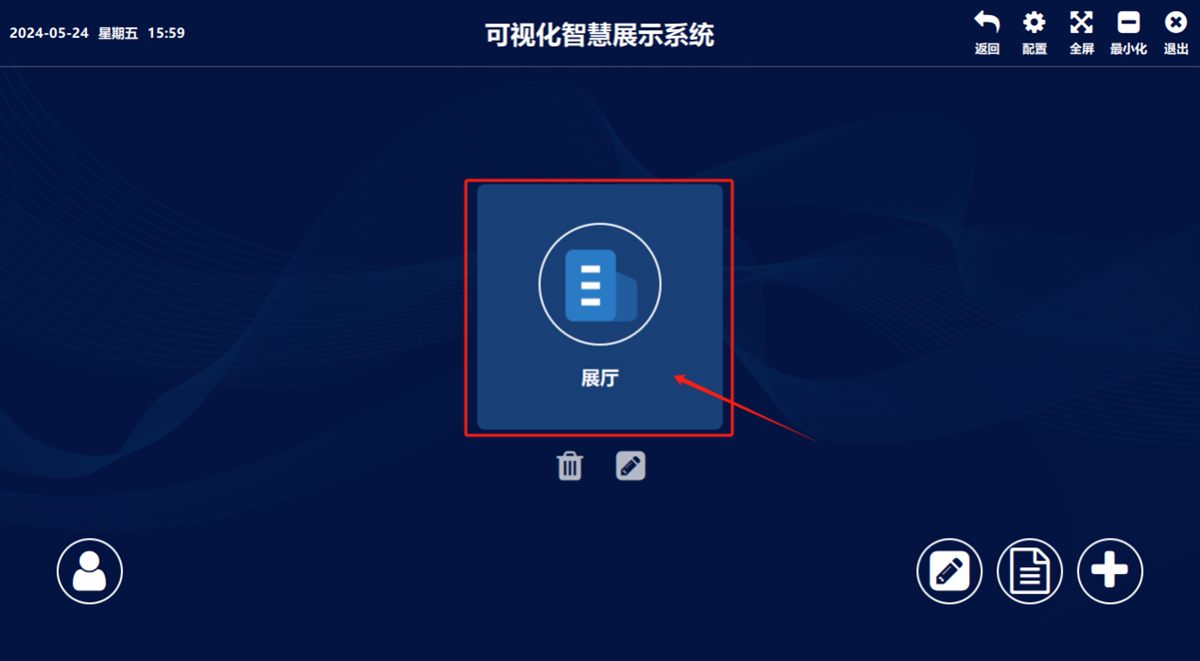
Click the central main icon to enter the main screen.
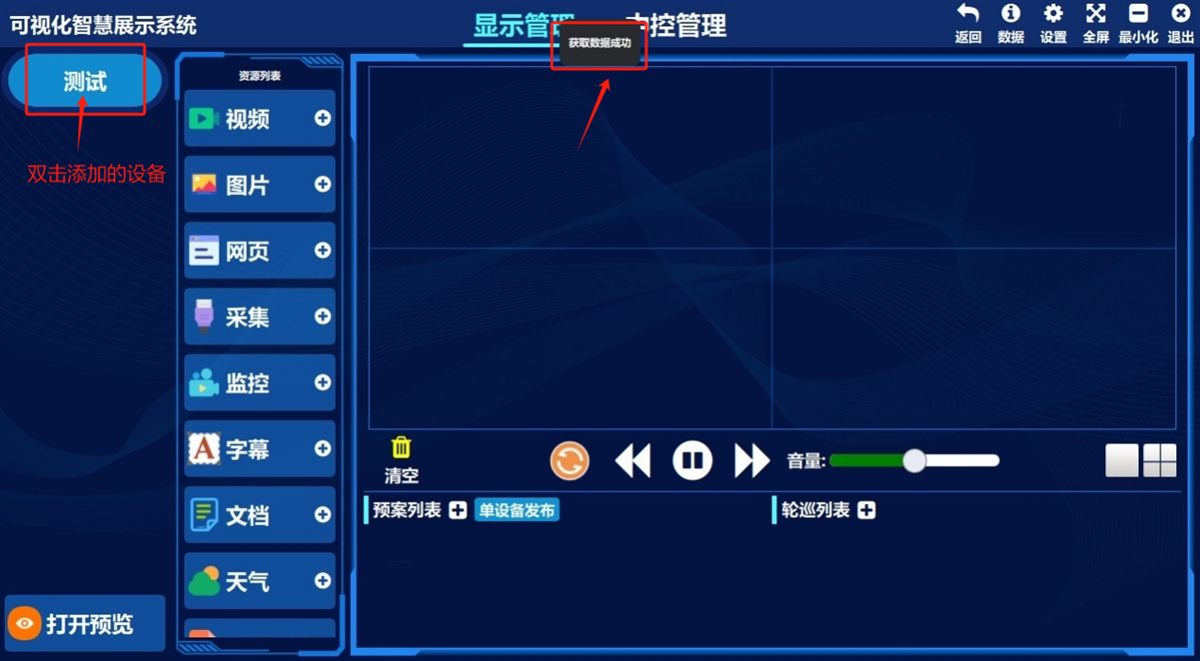
Double-click the added device in the left-hand device list. The prompt 获取数据成功(Data retrieved successfully) means the device is connected.
4. Rename the device
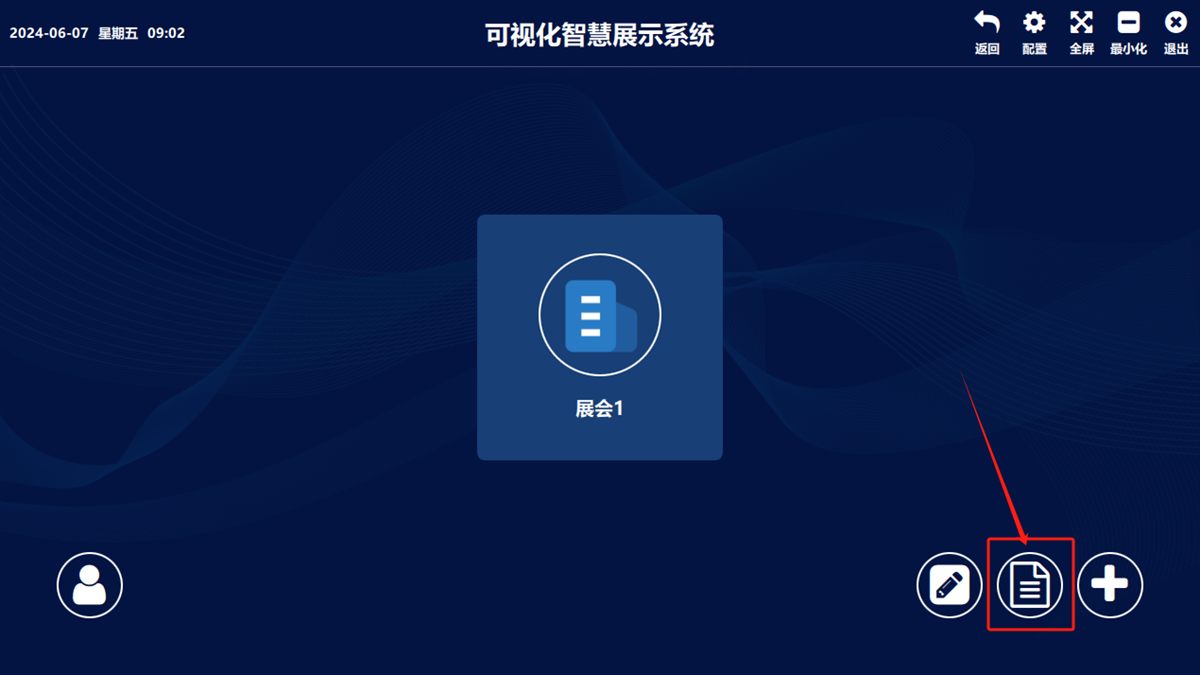
- ① Click the back button in the top-right corner
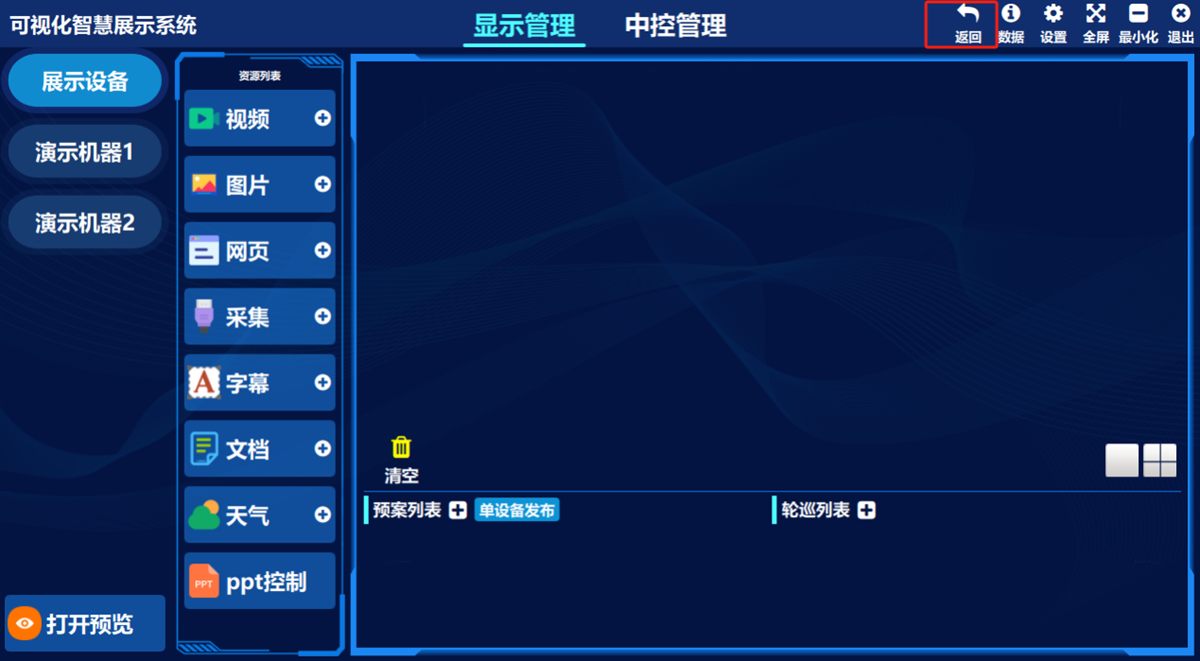
- ② Click the second edit icon in the bottom-right corner
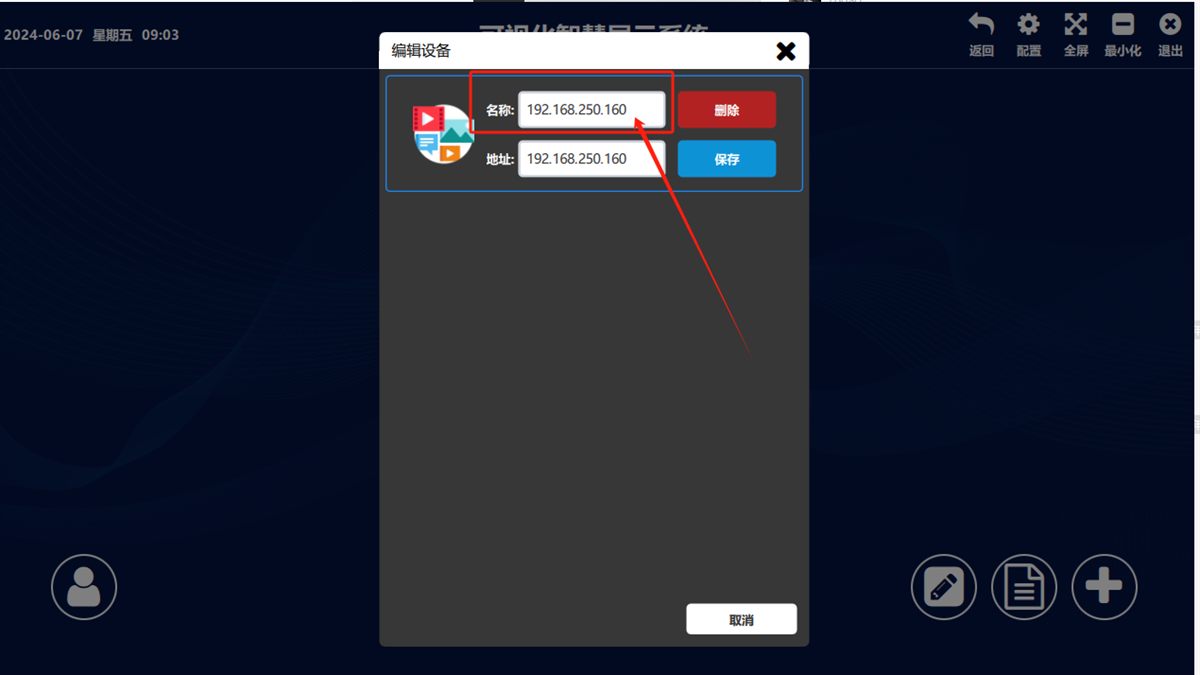
- ③ Change the device name in the edit dialog that appears
Was this page helpful?A one-line note helps us make these steps more accurate.