Documentation
Getting Started
Devices and Assets
Publishing and Display
Scenes and Patrol
Management and Settings
Troubleshooting and Support
Publishing Signals
1. Publish a video signal
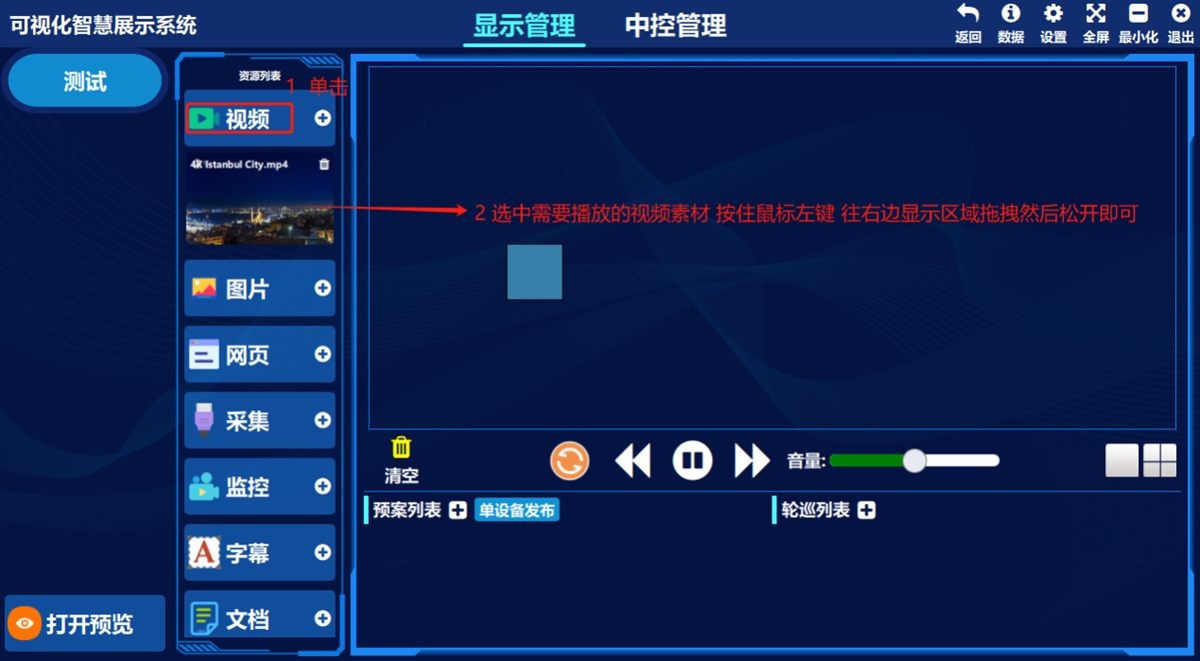
- ① Click 视频(Video), select any video asset in the list, ② hold the left mouse button, drag it to the display area on the right and release the button.
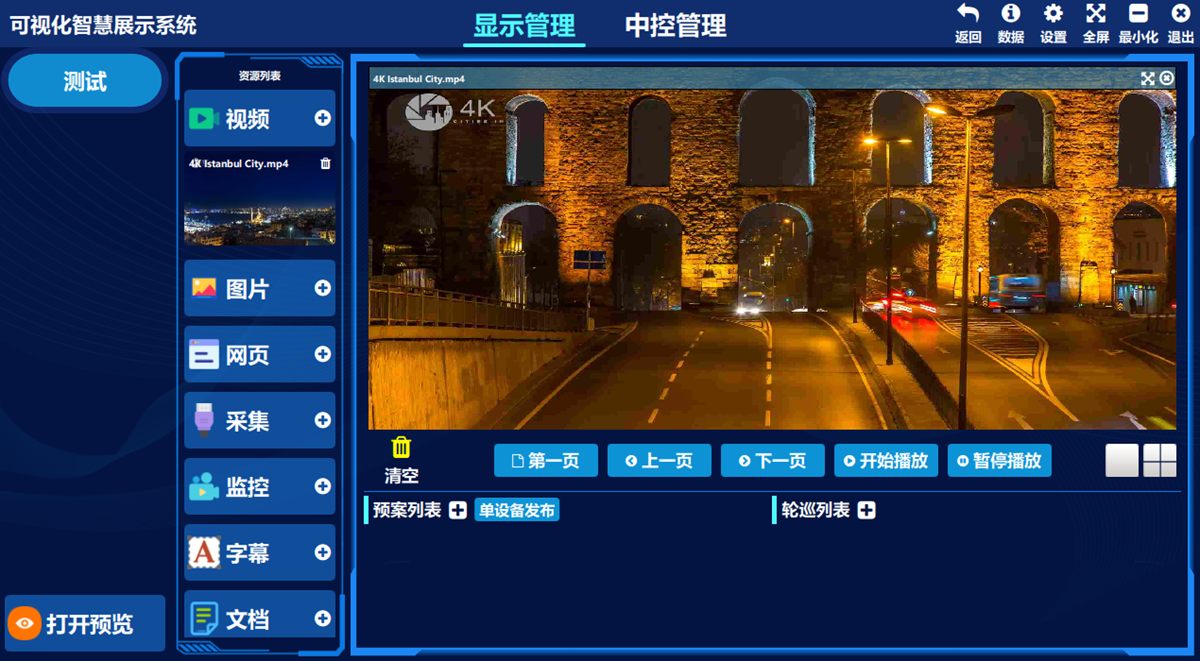
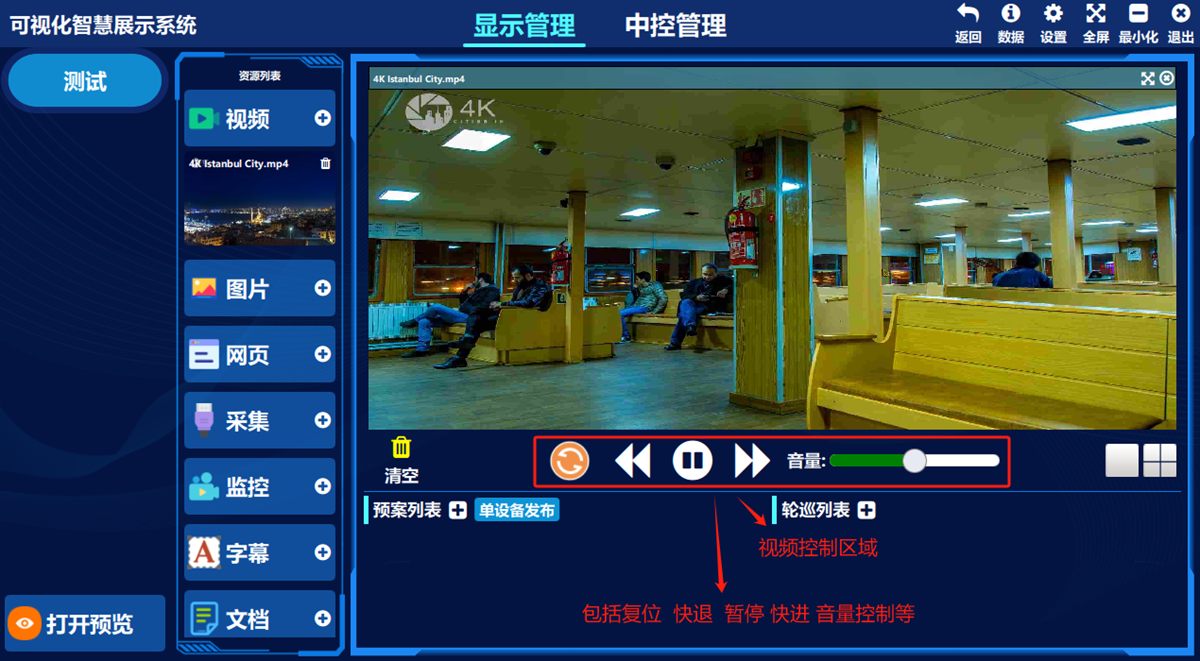
The area shown below is the control area, where you can fast-forward, rewind, pause, play, adjust the volume and replay the video.
2. Publish an image signal
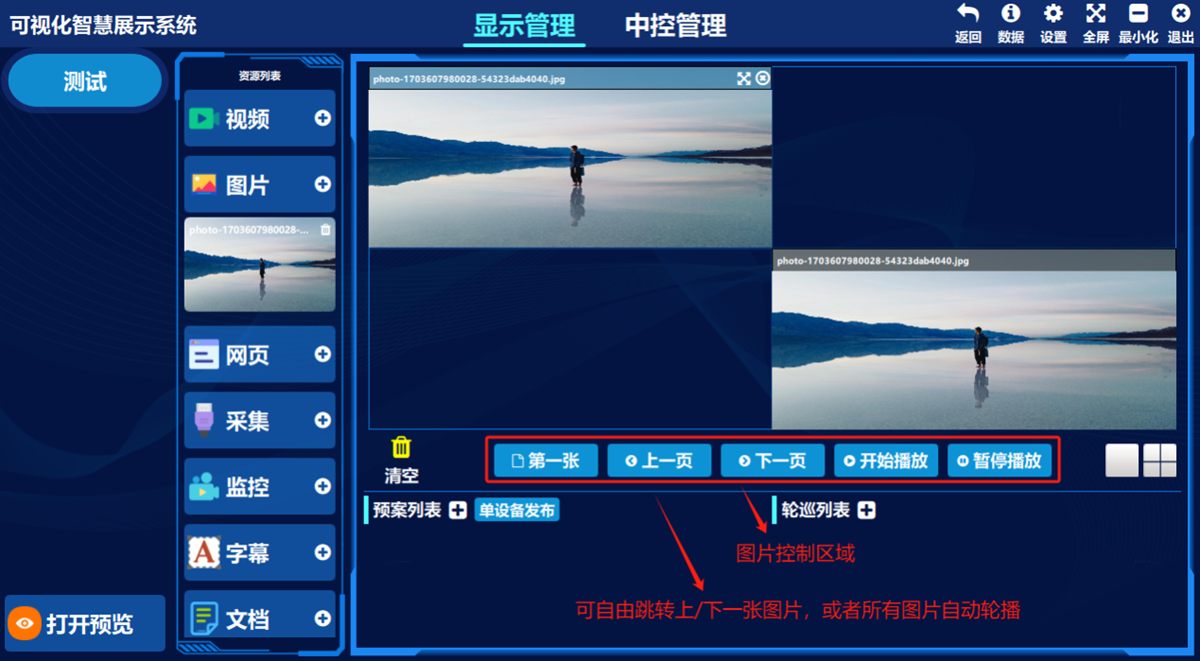
- ① Click 图片(Image), select any image asset in the list, ② hold the left mouse button, drag it to the display area on the right and release the button.
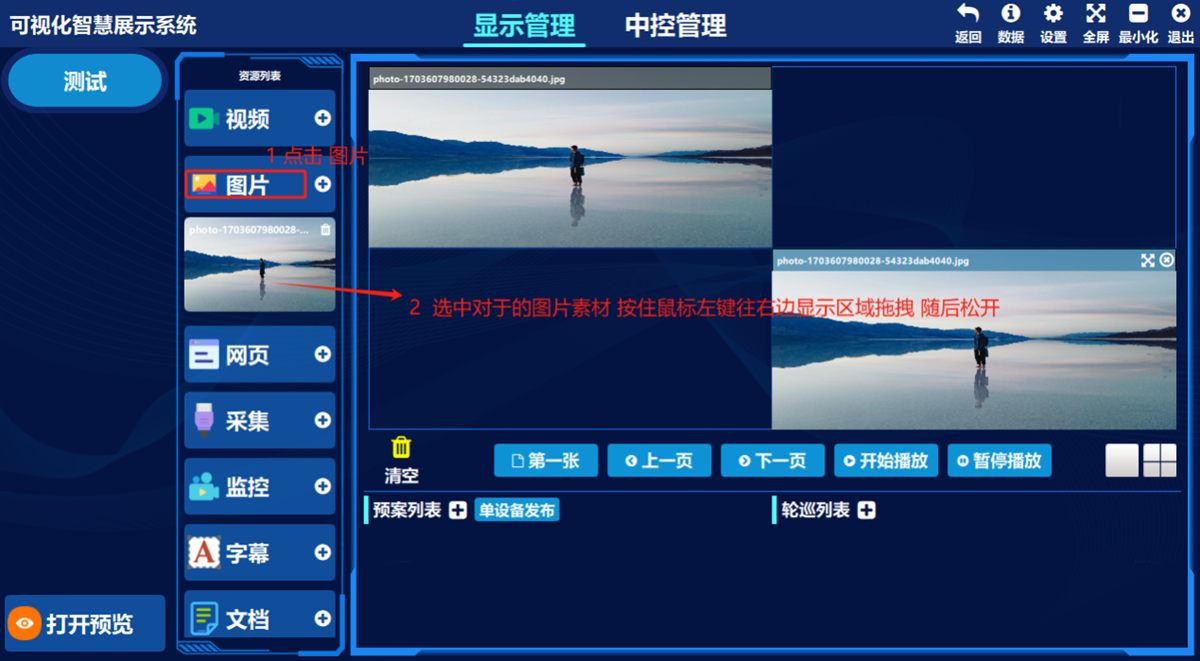
The area shown below is the control area, where you can jump straight to the first image, go to the previous or next image, start an automatic slideshow of the listed images and pause it.
3. Publish a web page
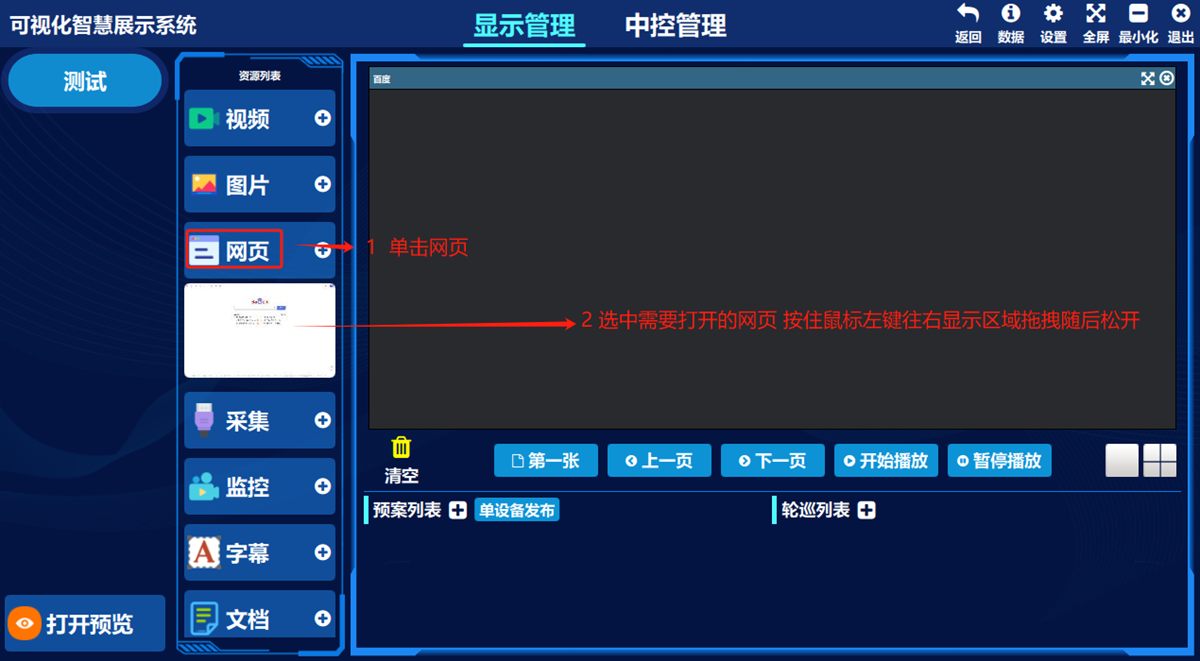
- ① Click 网页(Web Page), select any web page asset in the list, ② hold the left mouse button, drag it to the display area on the right and release the button.
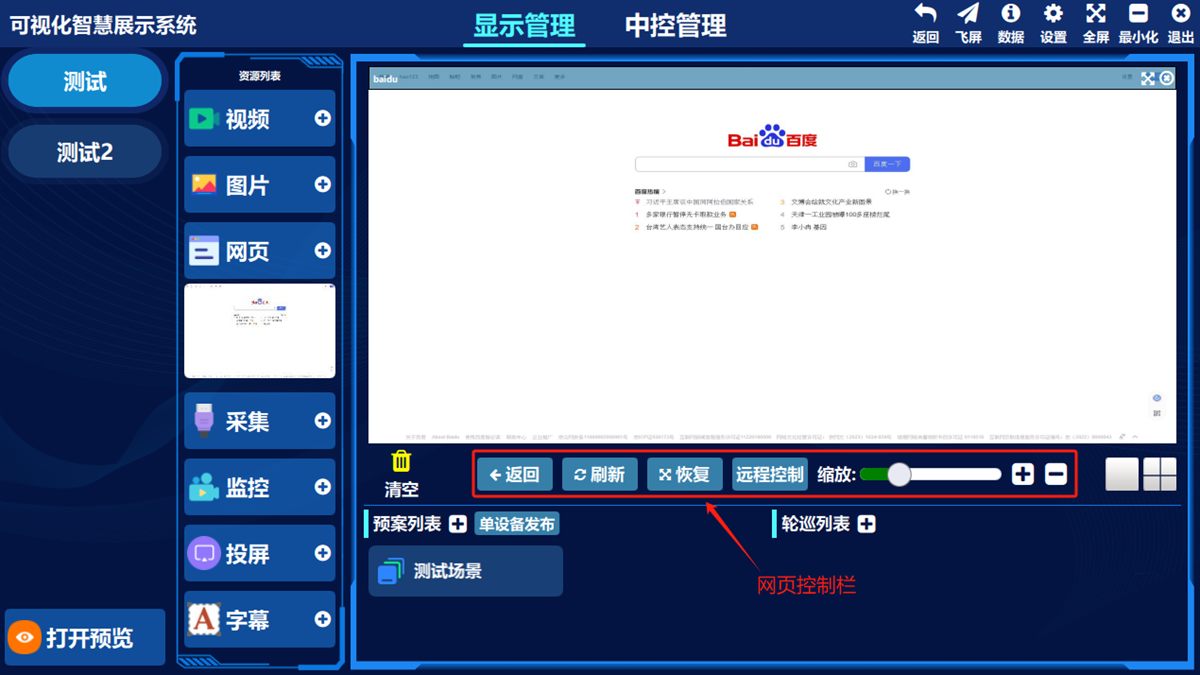
The area shown below is the control area, where you can go back, refresh and zoom the web page, which gives you remote control.
4. Publish an HD signal
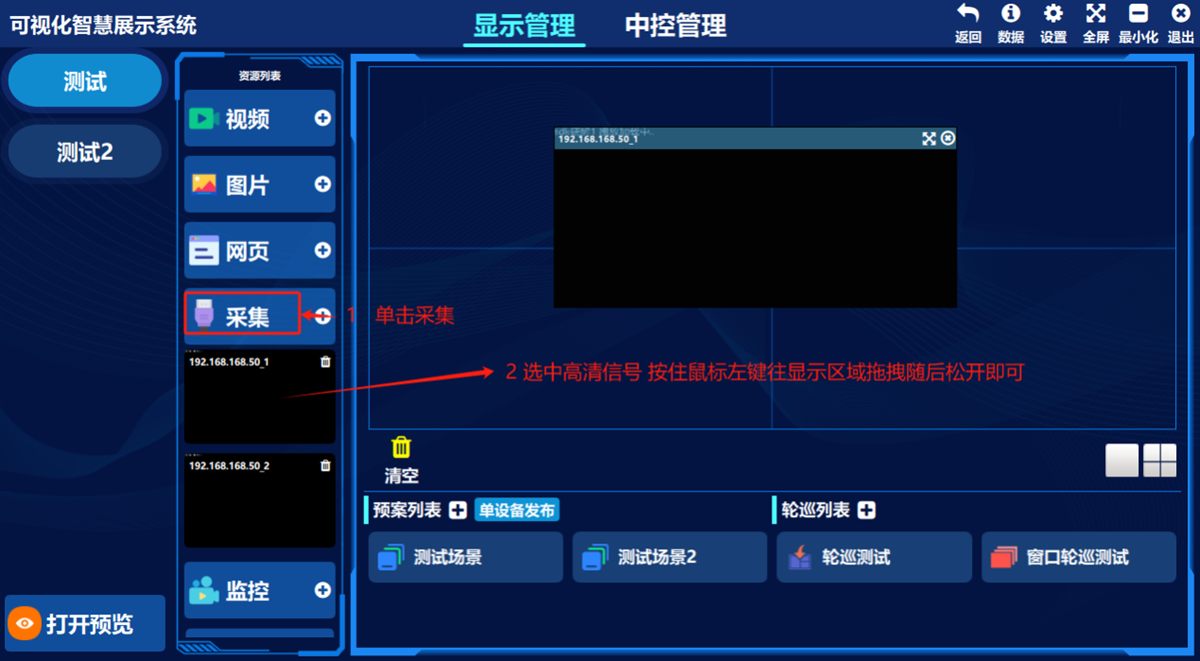
- ① Click 采集(Capture), select any capture signal source in the list, ② hold the left mouse button, drag it to the display area on the right and release the button.
5. Publish a camera signal
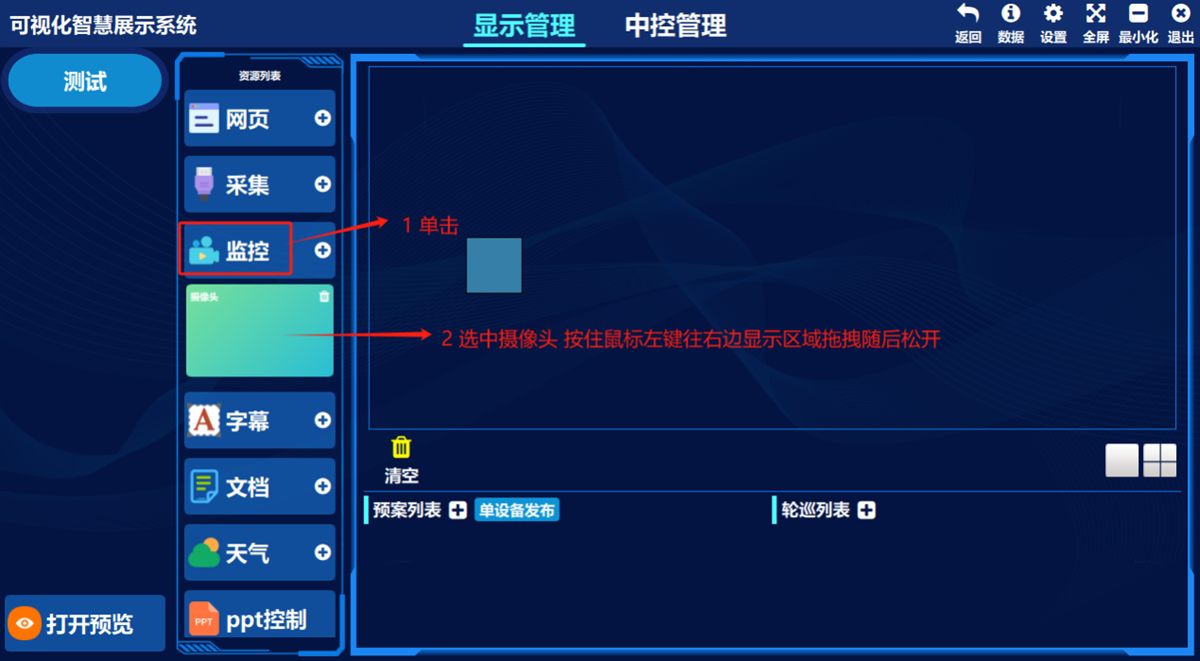
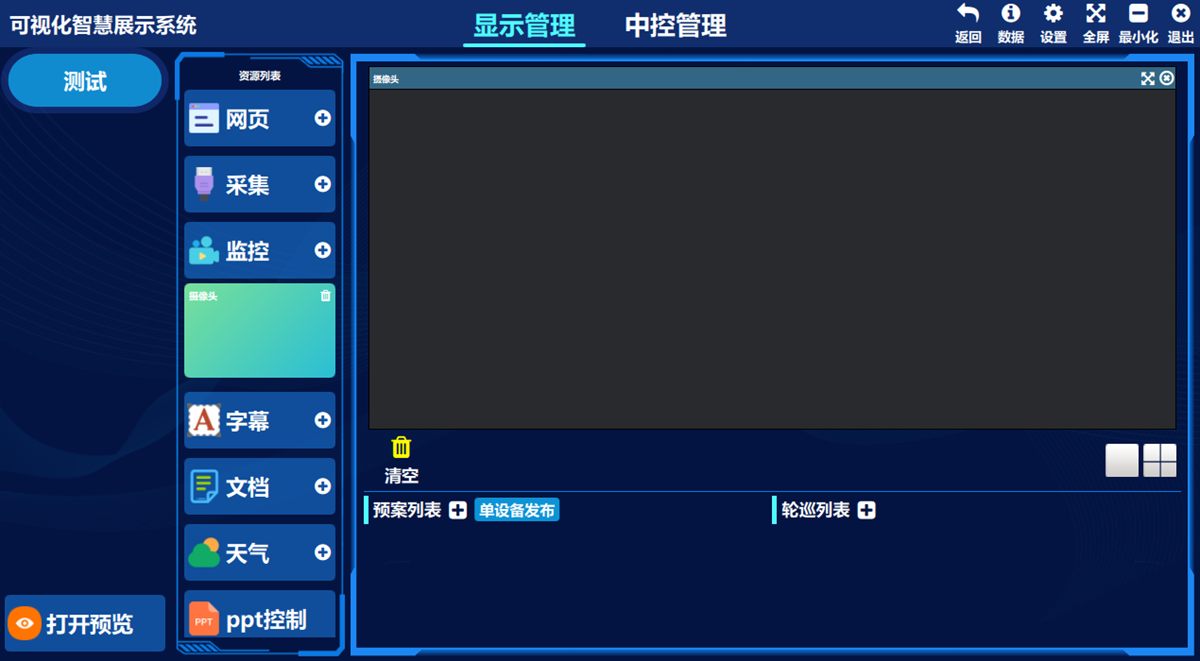
- ① Click 监控(Surveillance), select any surveillance signal source in the list, ② hold the left mouse button, drag it to the display area on the right and release the button.
6. Publish a document signal
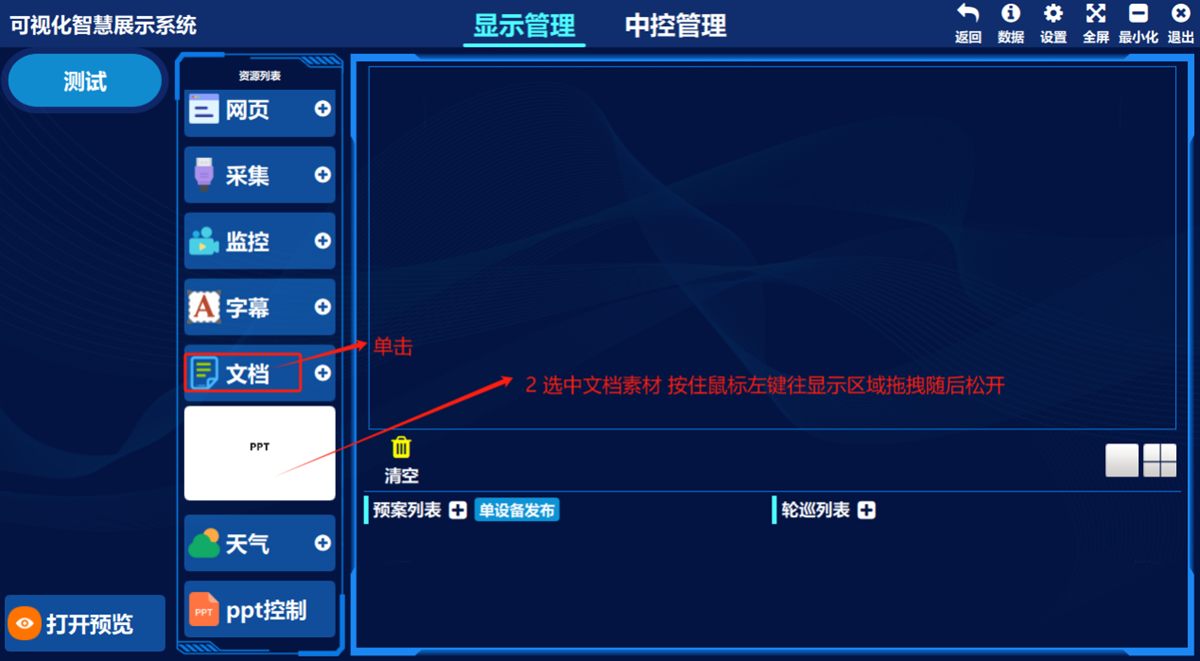
- ① Click 文档(Document), select any document asset you have uploaded in the list, ② hold the left mouse button, drag it to the display area on the right and release the button.
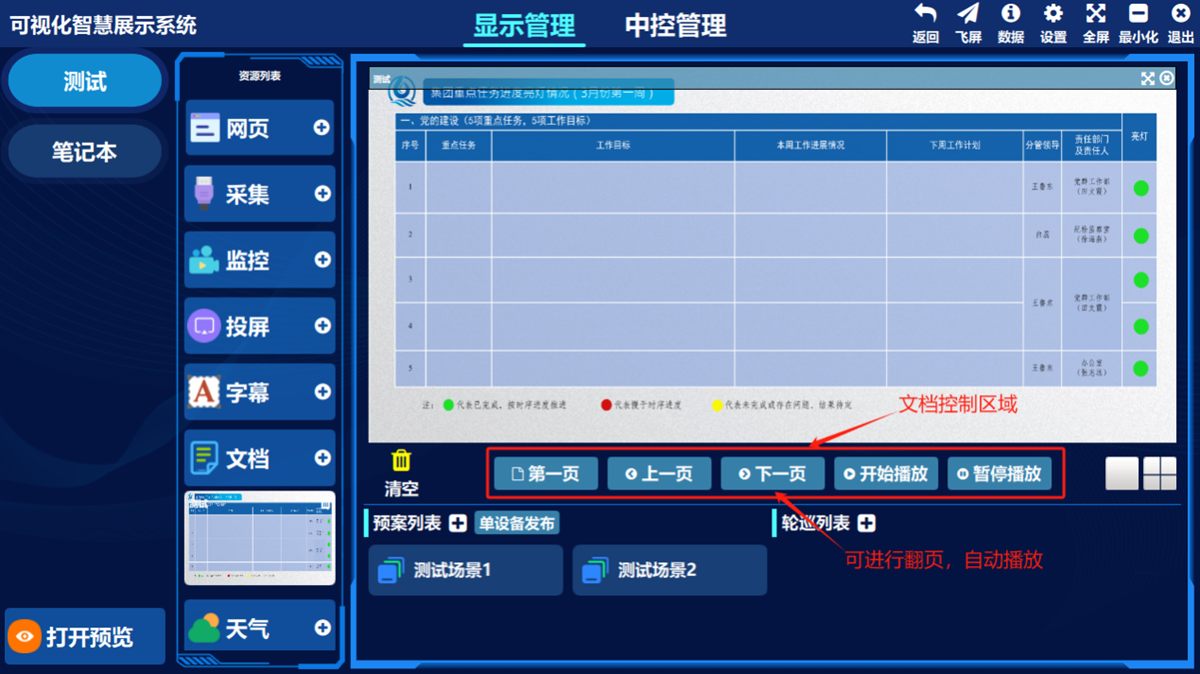
The area shown below is the control area, where you can turn pages, start automatic playback and jump quickly back to the first page.
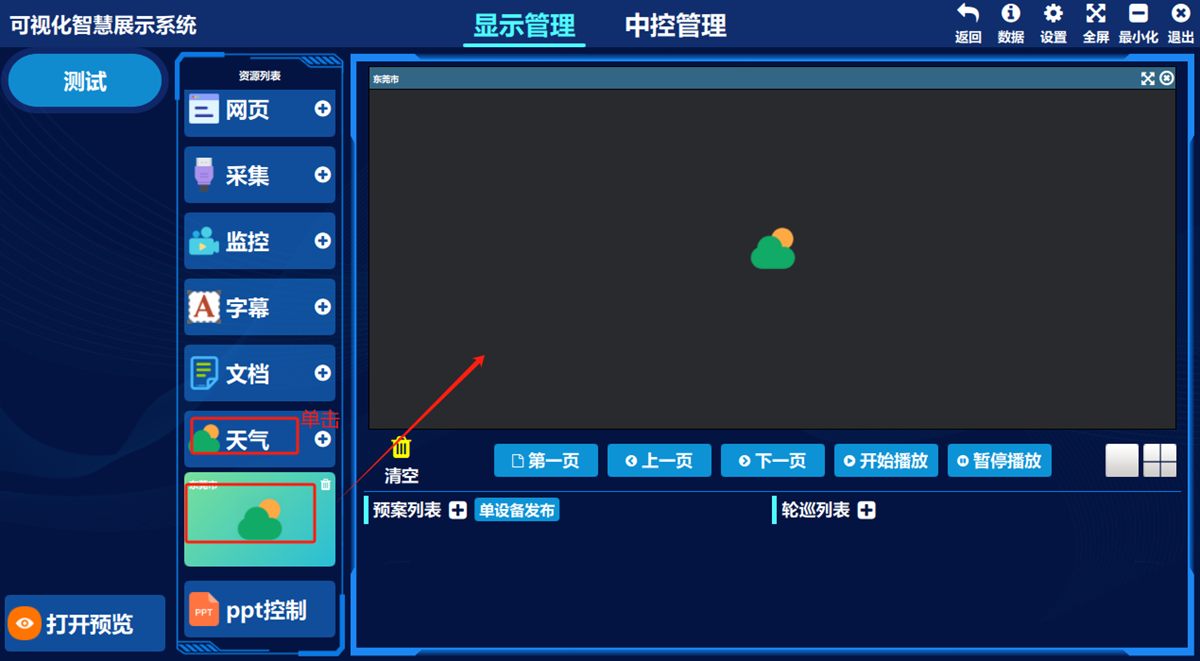
7. Publish a weather signal
- ① Click 天气(Weather), select any weather resource you have added in the list, ② hold the left mouse button, drag it to the display area on the right and release the button.
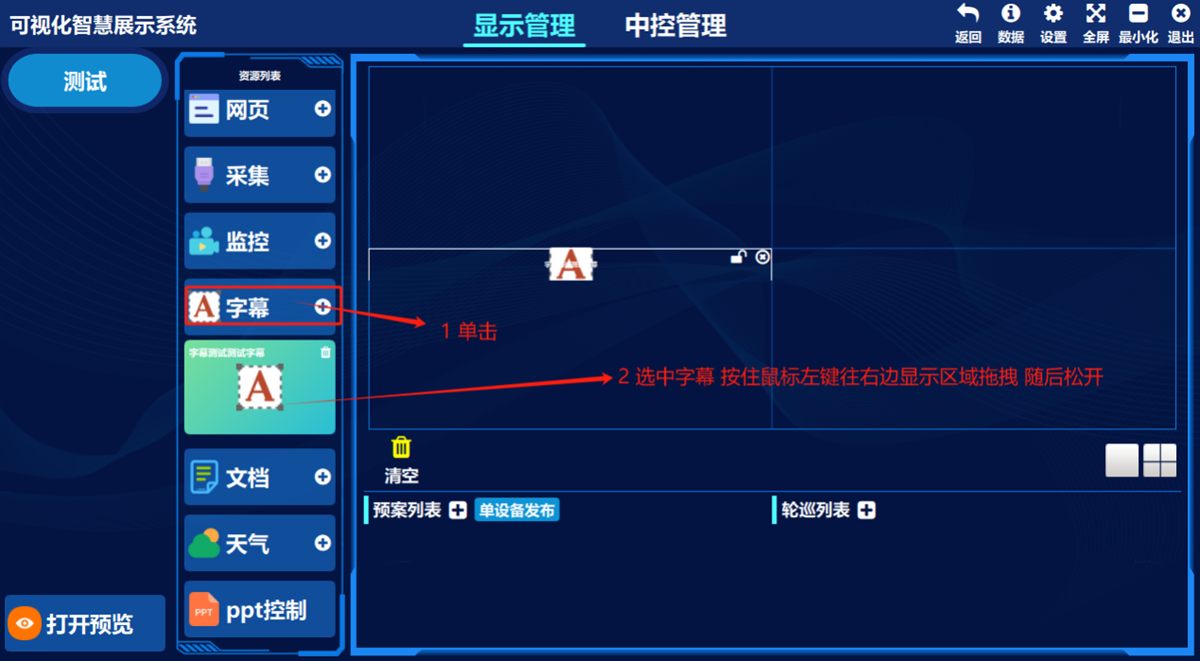
8. Publish a subtitle
- ① Click 字幕(Subtitle), select any subtitle you have added in the list, ② hold the left mouse button, drag it to the display area on the right and release the button.
Was this page helpful?A one-line note helps us make these steps more accurate.