Documentation
Getting Started
Devices and Assets
Publishing and Display
Scenes and Patrol
Management and Settings
Troubleshooting and Support
Wireless Cast
1. Add a scene (preset)
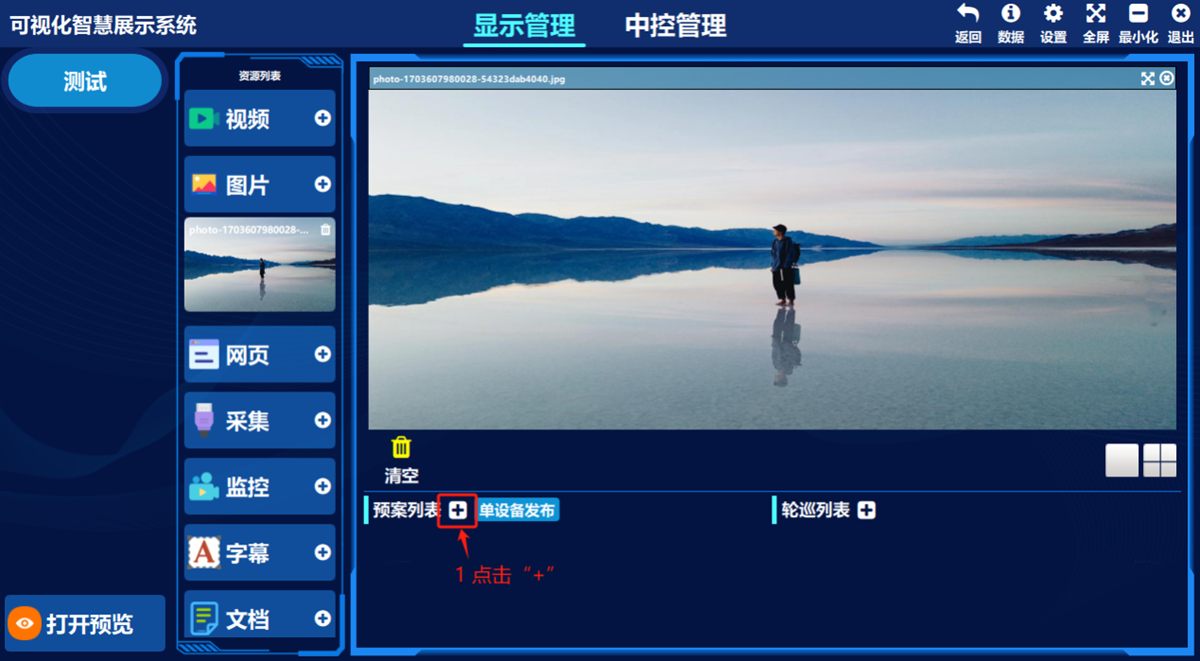
- ① Click the add button in the preset list
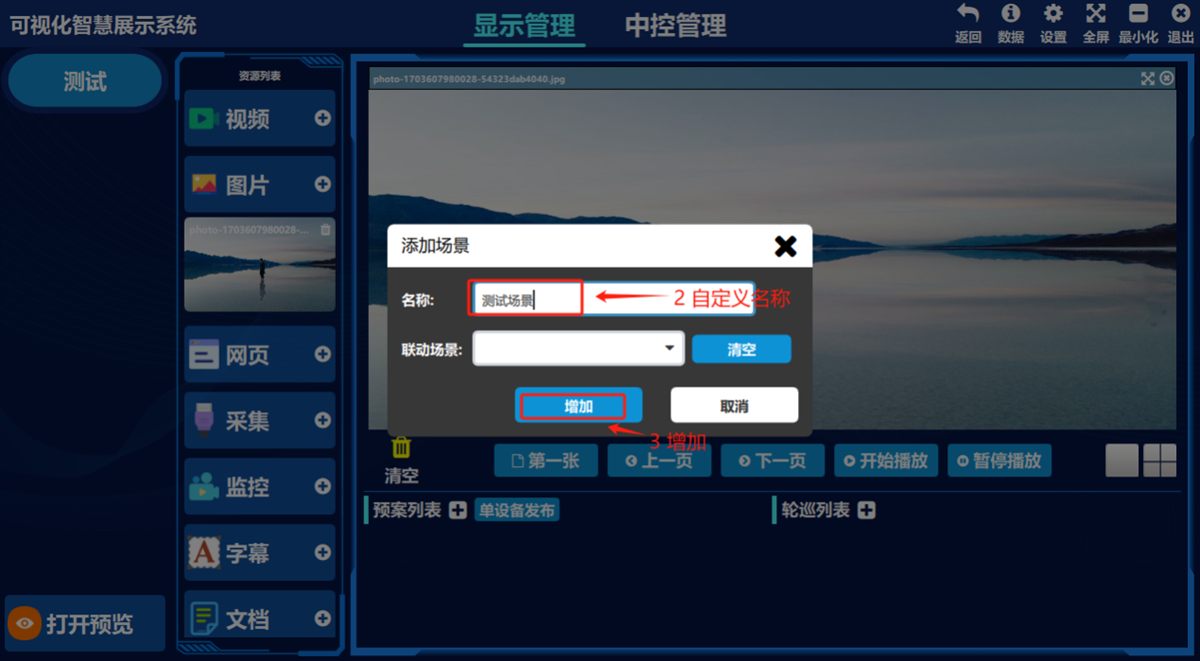
- ② Enter a scene name of your choice, ③ click 增加(Add)
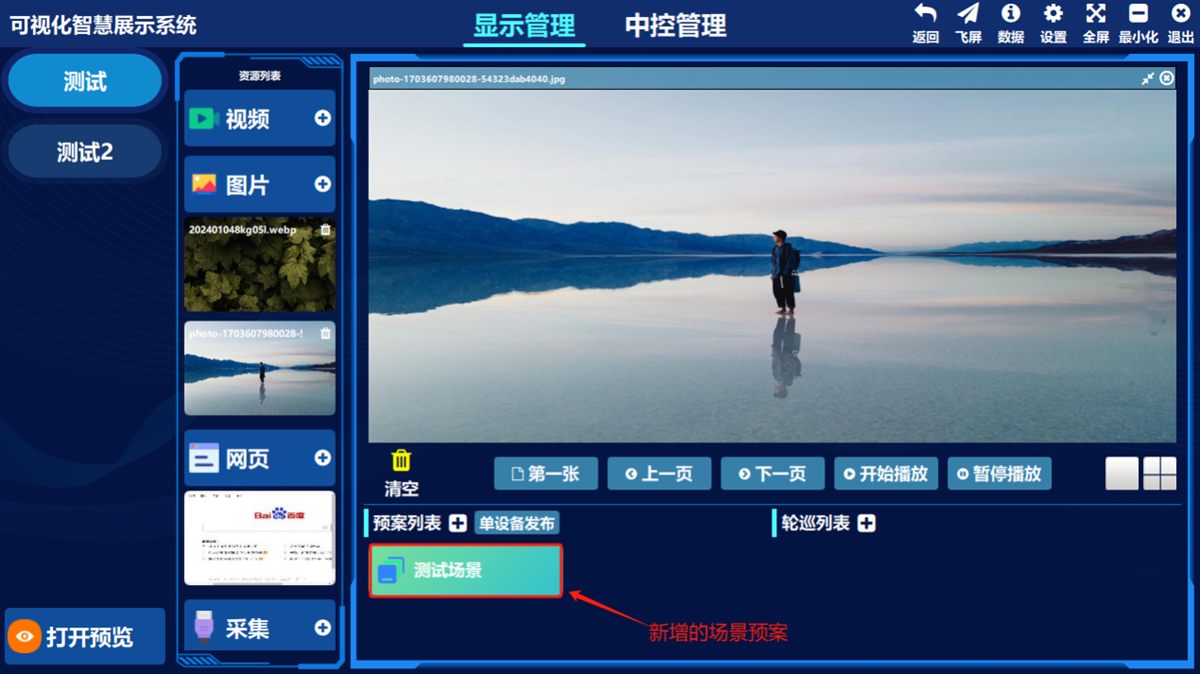
(Illustration) The list of added scenes/presets:
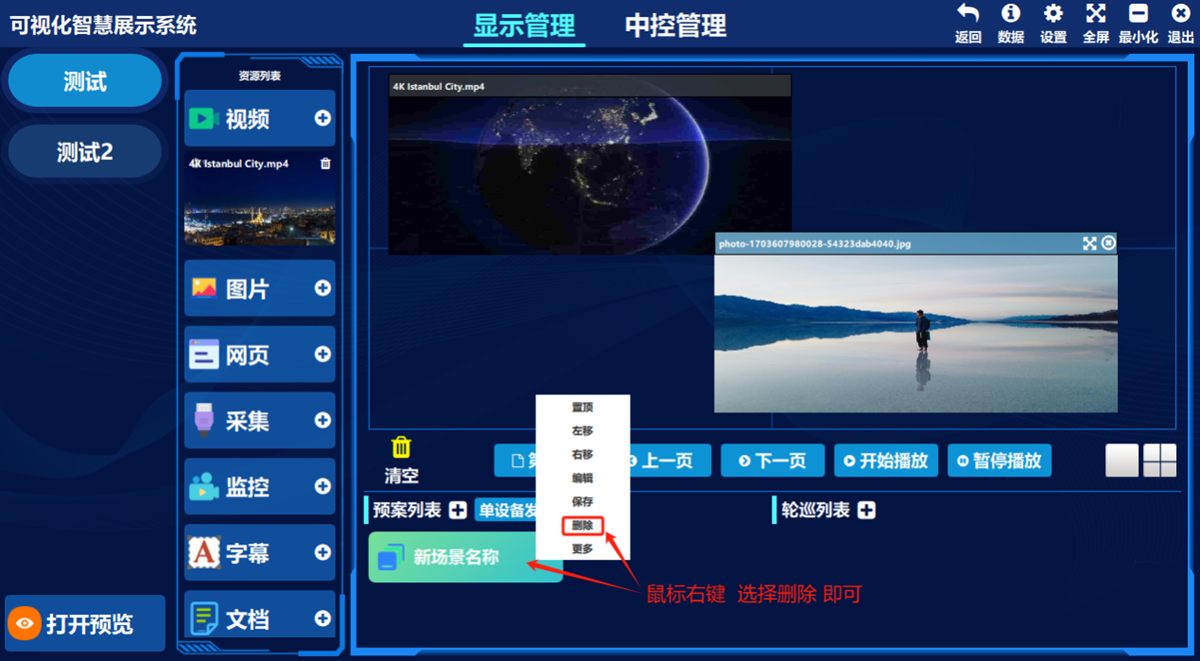
Delete a scene (preset)
- ① Right-click any entry in the scene list and choose 删除(Delete) in the pop-up menu.
3. Save scene (preset) data to other devices
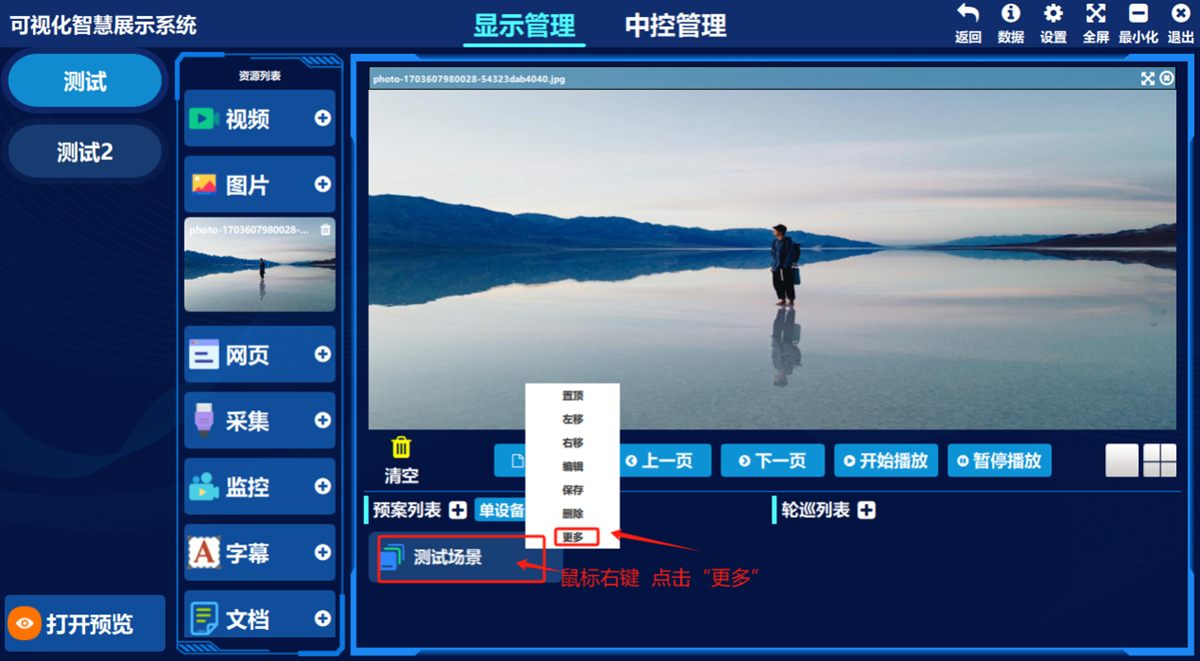
- ① Right-click any scene (preset) and click 更多(More), ② choose 多机发布(Publish to Multiple Devices) in the pop-up menu
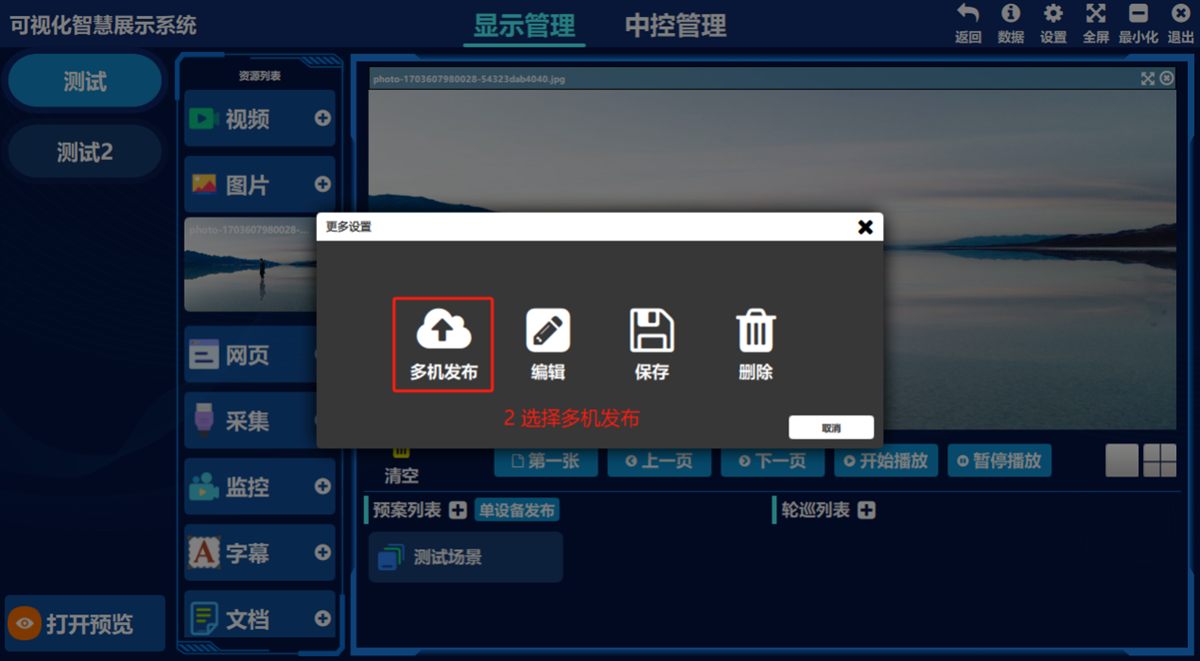
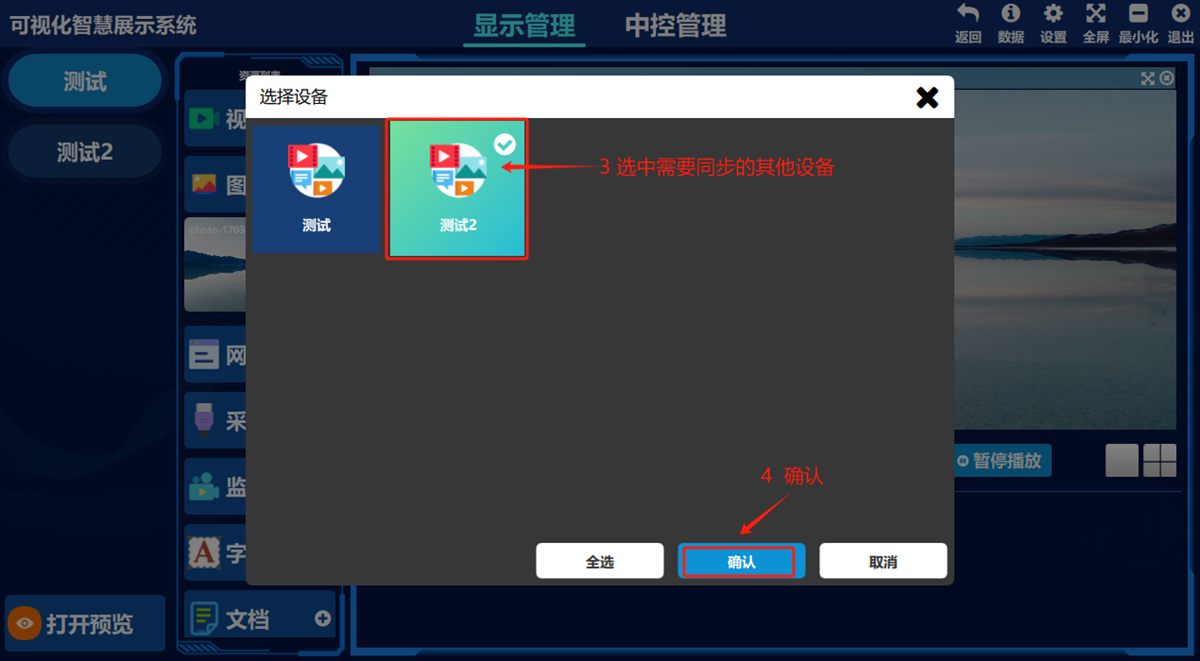
- ③ Select the devices to sync the data to (you can select several at once) and click 确认(Confirm) to finish the data sync.
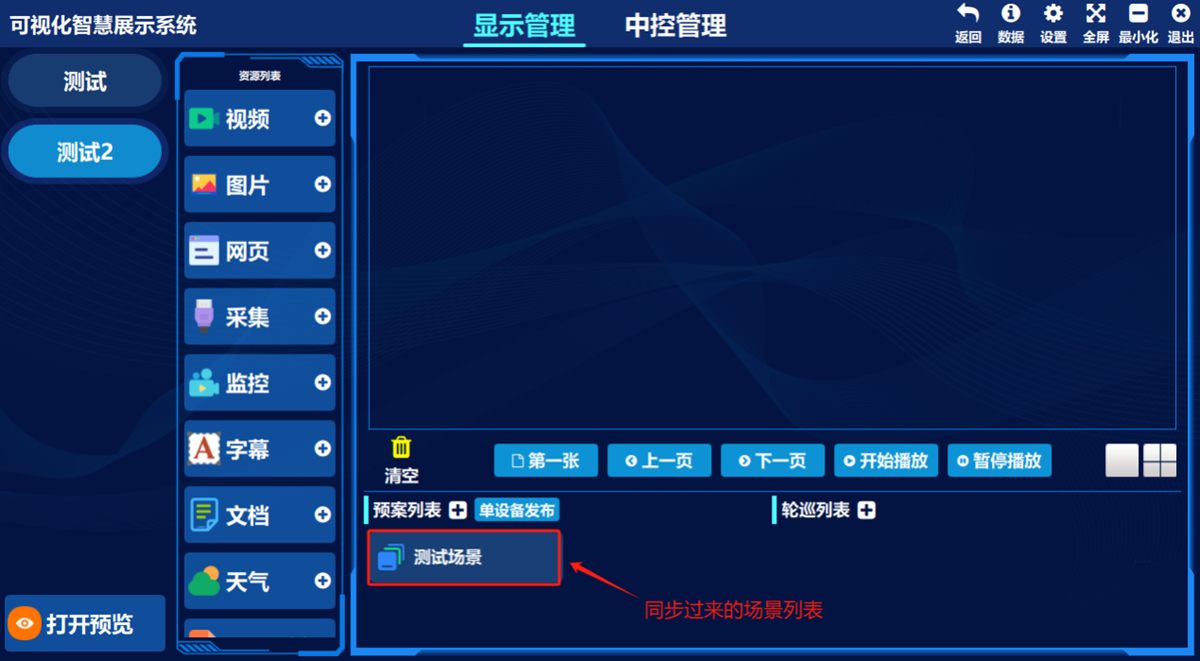
Then double-click the device you synced to and the scene list appears on that device.
Rename a scene
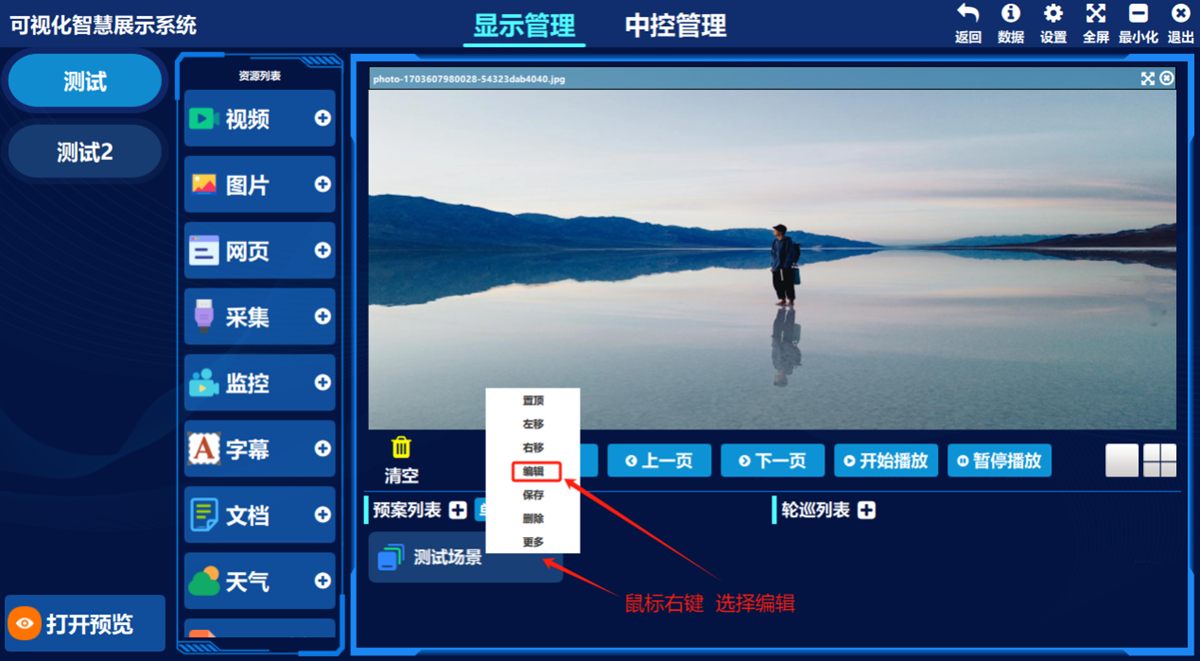
- ① Right-click any scene, ② choose 编辑(Edit) in the pop-up menu
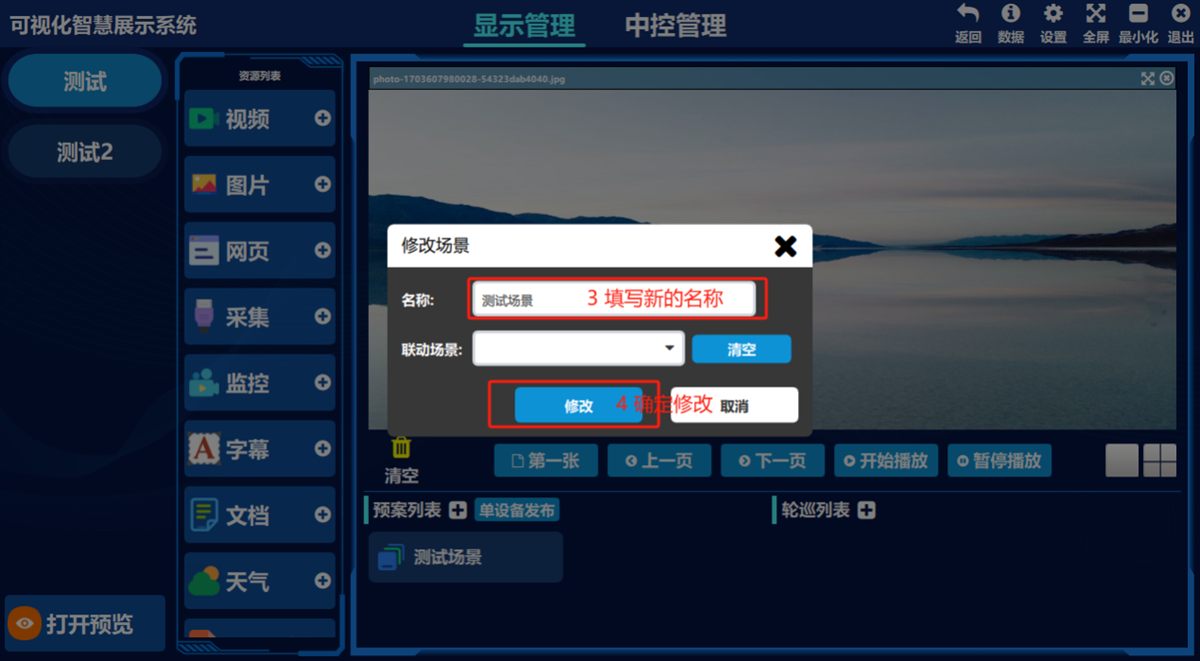
- ③ Enter the new name and click 修改(Modify).
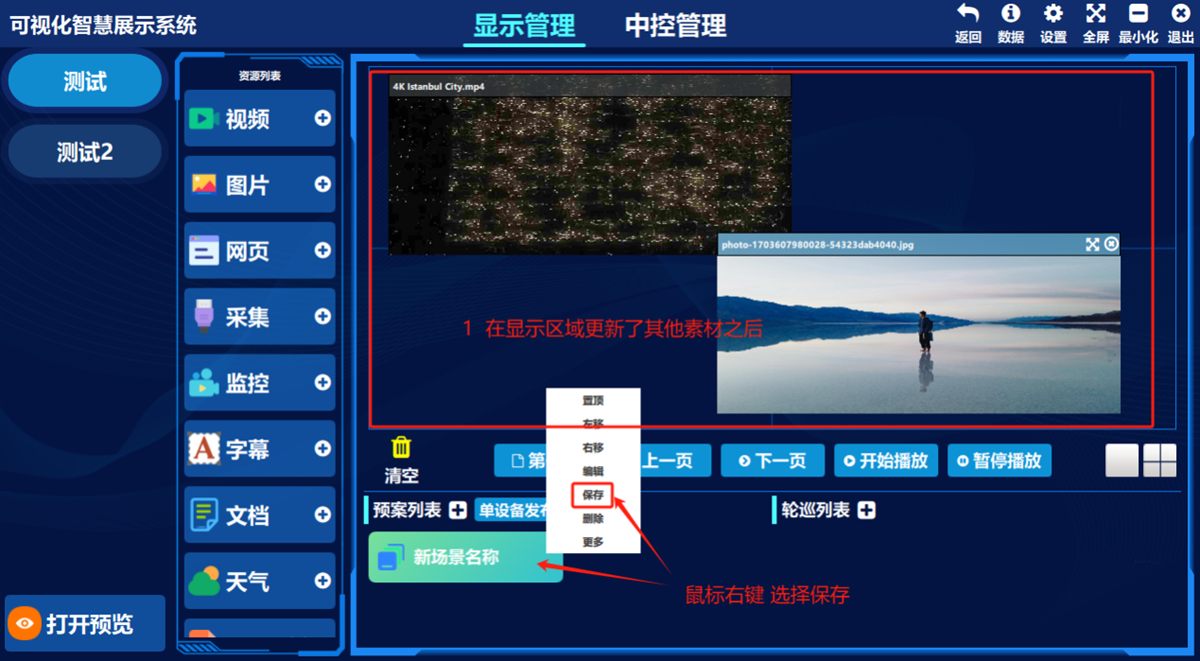
4. Change the scene (preset) layout or replace assets
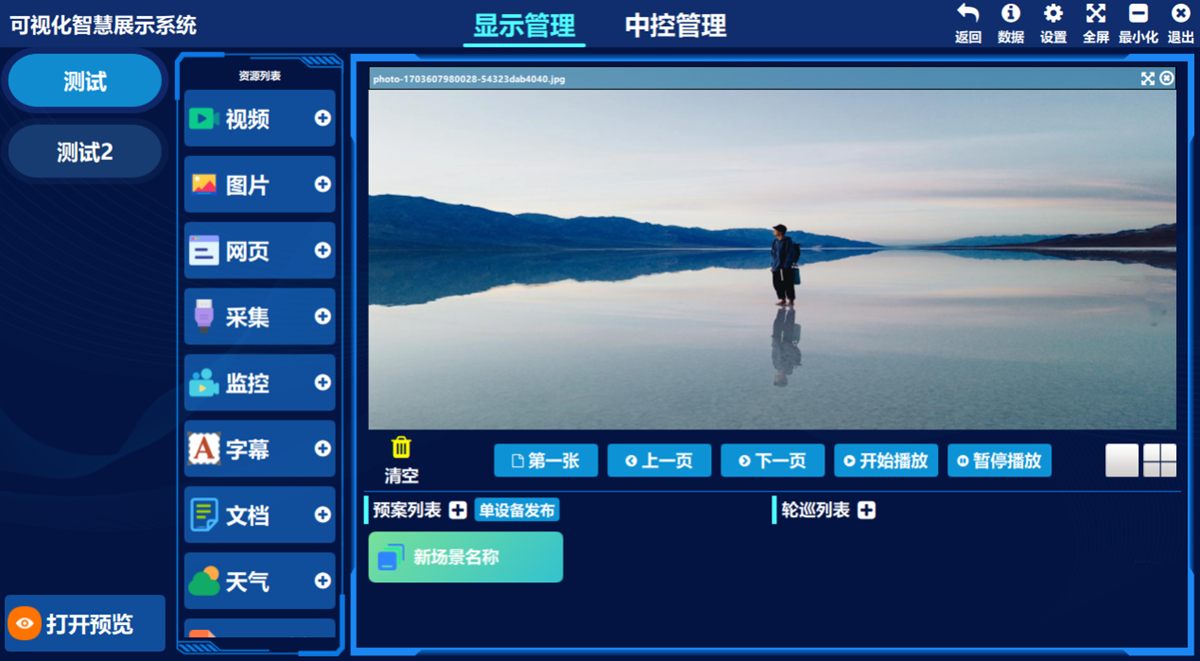
Original layout example:
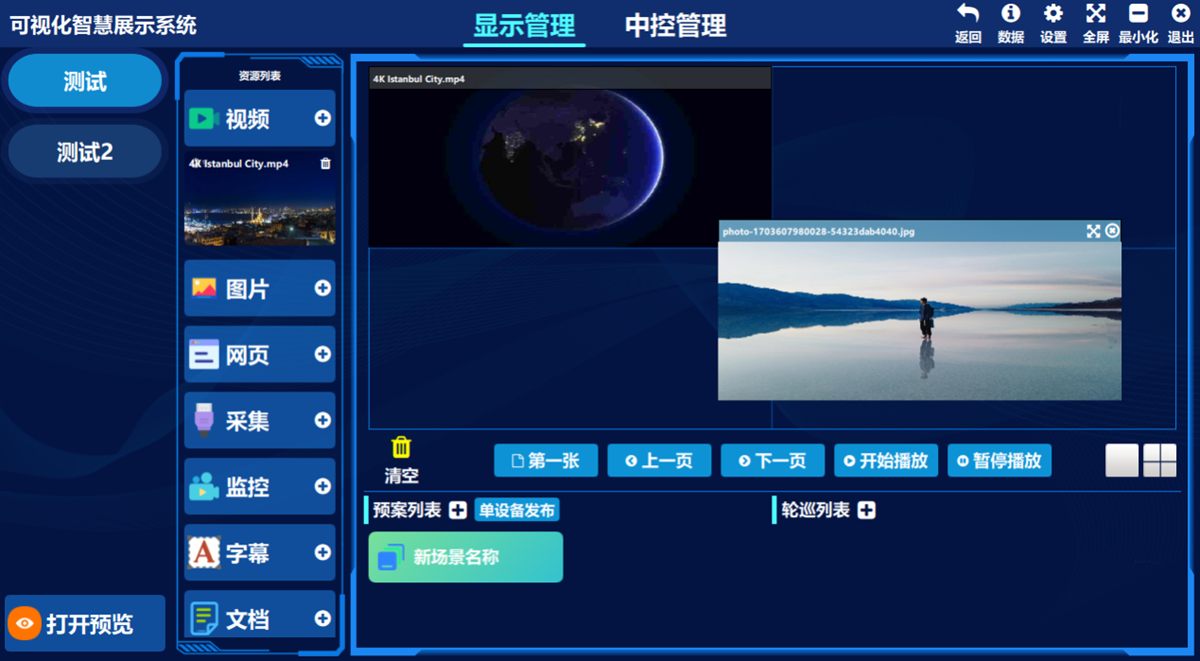
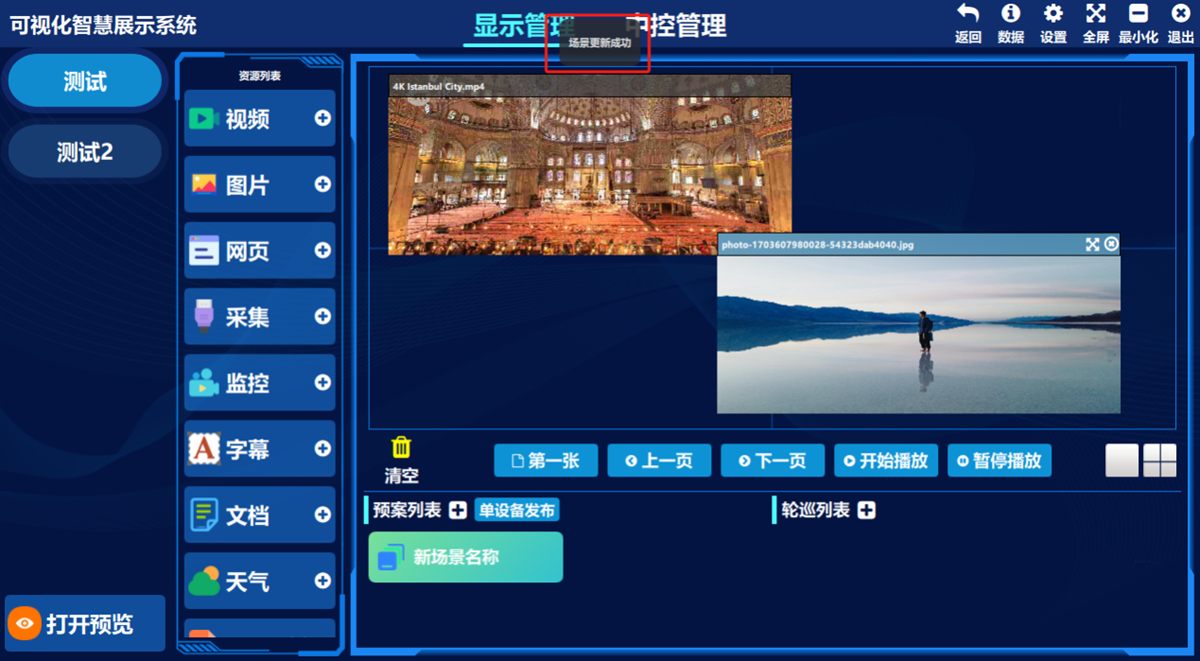
New layout example:
Procedure:
- ① Replace the assets in the display area or change the window layout (see Publishing Signals / Window Split), ② right-click the original scene and choose 保存(Save) in the pop-up menu; the prompt 场景更新成功(Scene updated successfully) confirms it.
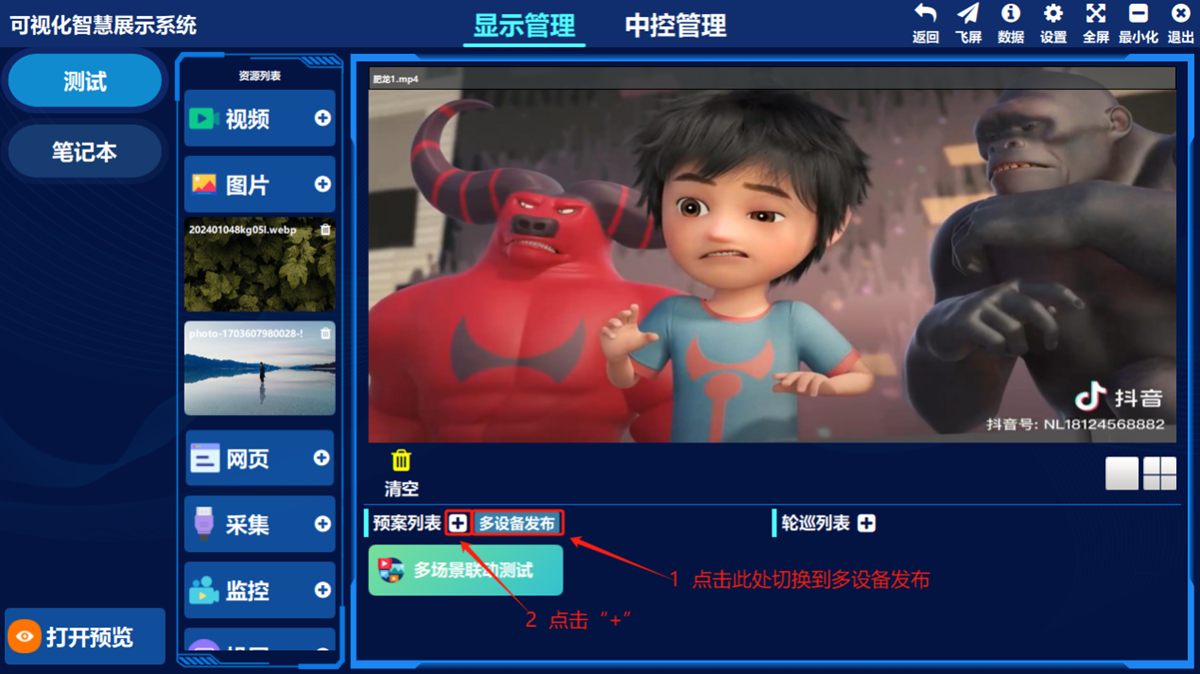
5. Publish scenes (presets) to multiple devices
- ① Click the control next to the preset list to switch modes, ② click the “” button to open the settings screen. (Note: to replace or modify data, click the “” button in the same way.)
③ In the 设备列表(Device List) on the left, select (multi-select) devices to read their scene (preset) lists (in the middle of the screen shown below), select the scenes (presets) you need, enter a scene name, click 新增场景(New Scene), then click 保存场景(Save Scene). Click 发布到多个设备(Publish to Multiple Devices) to make several devices use the scene configured the same way.
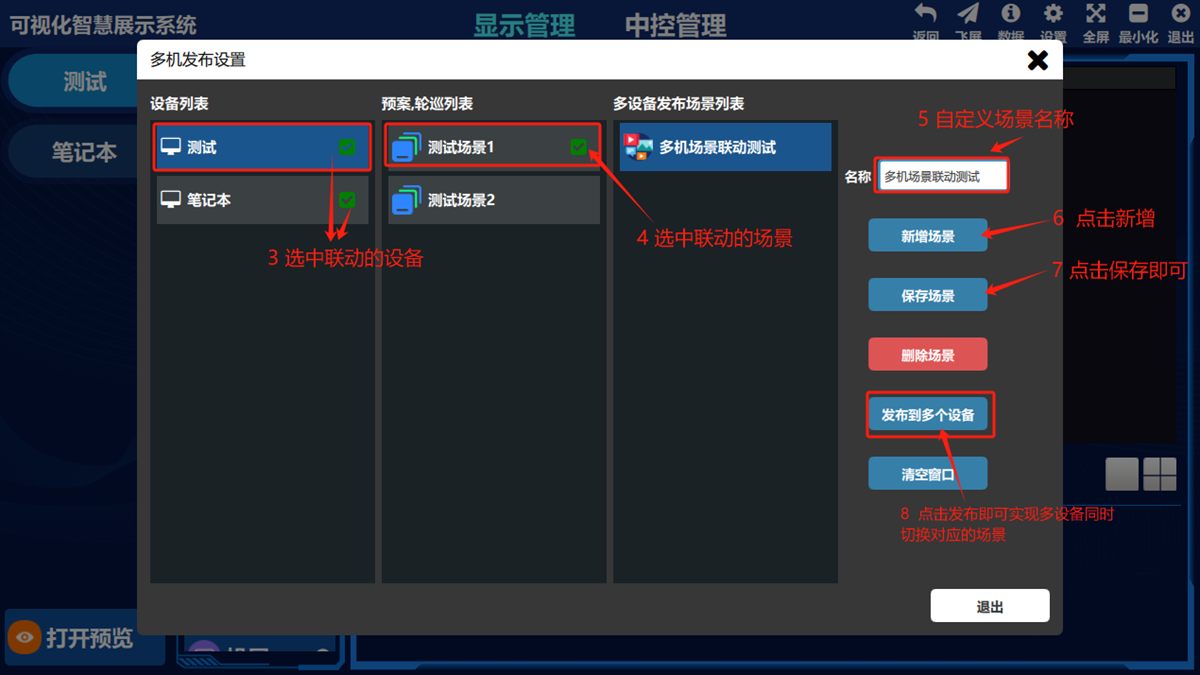
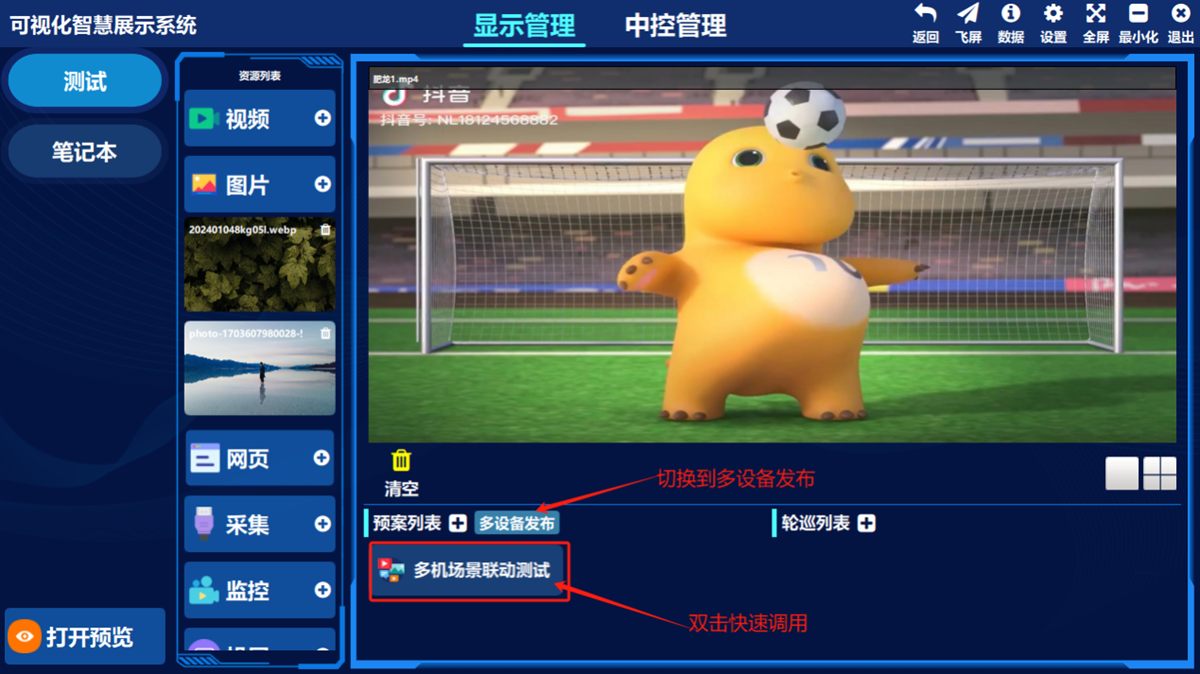
Or click “” in the preset list to switch to “” and preview the multi-device scene linkage presets you have added; double-click one to call it immediately.
Was this page helpful?A one-line note helps us make these steps more accurate.