Documents
Output Mapping Configuration
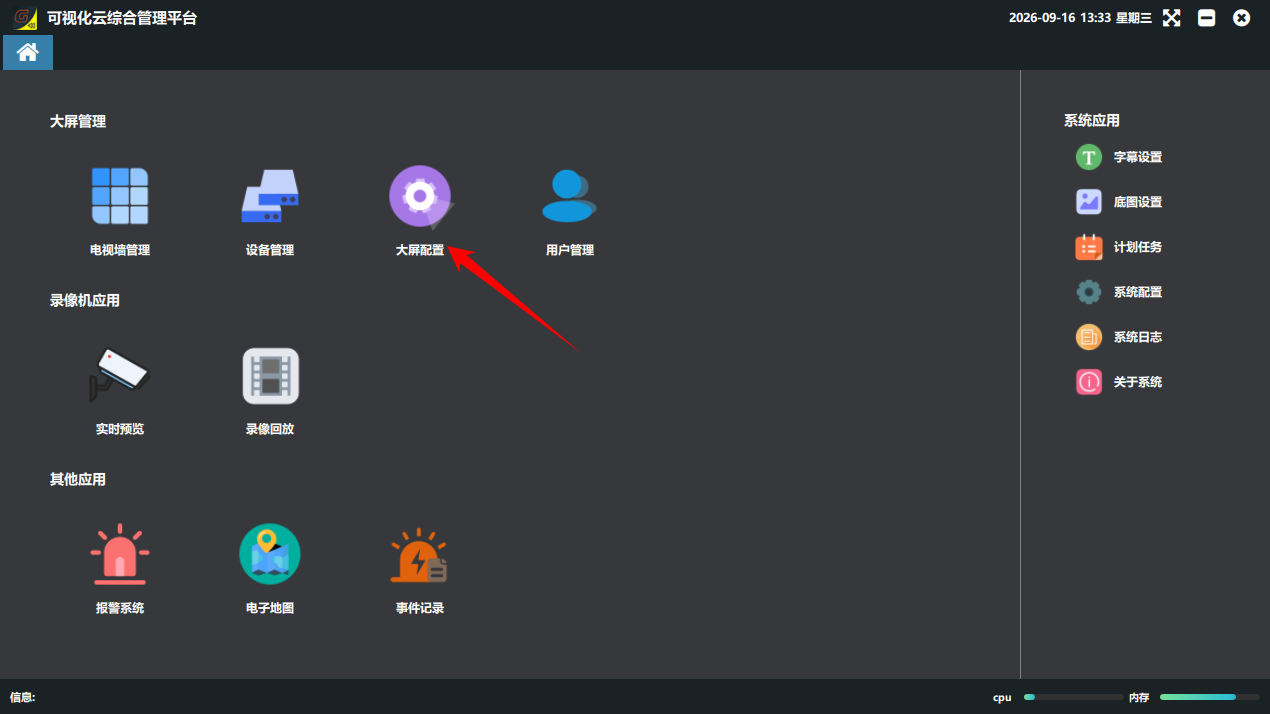
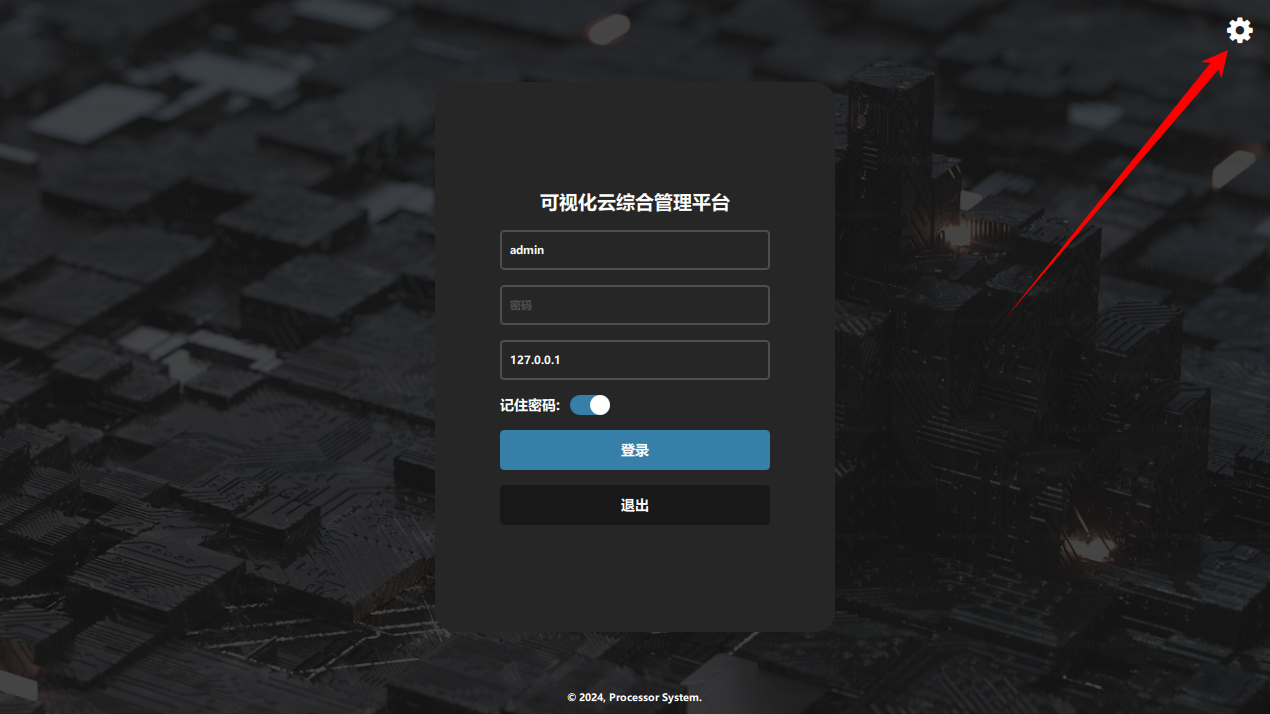
There are two ways to enter the configuration tool:
① Click the “大屏配置”(Video Wall Configuration) button in the software, or use the settings button in the top-right corner of the login screen.
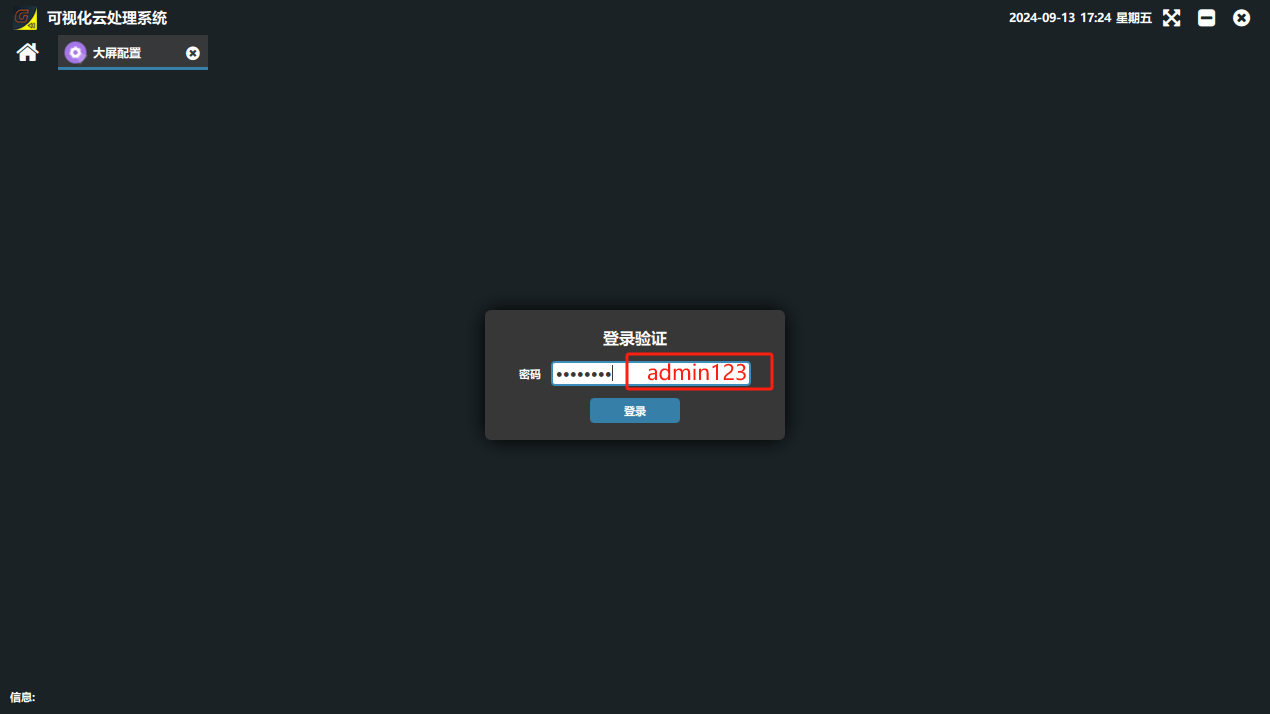
② Configuration tool login password: admin123
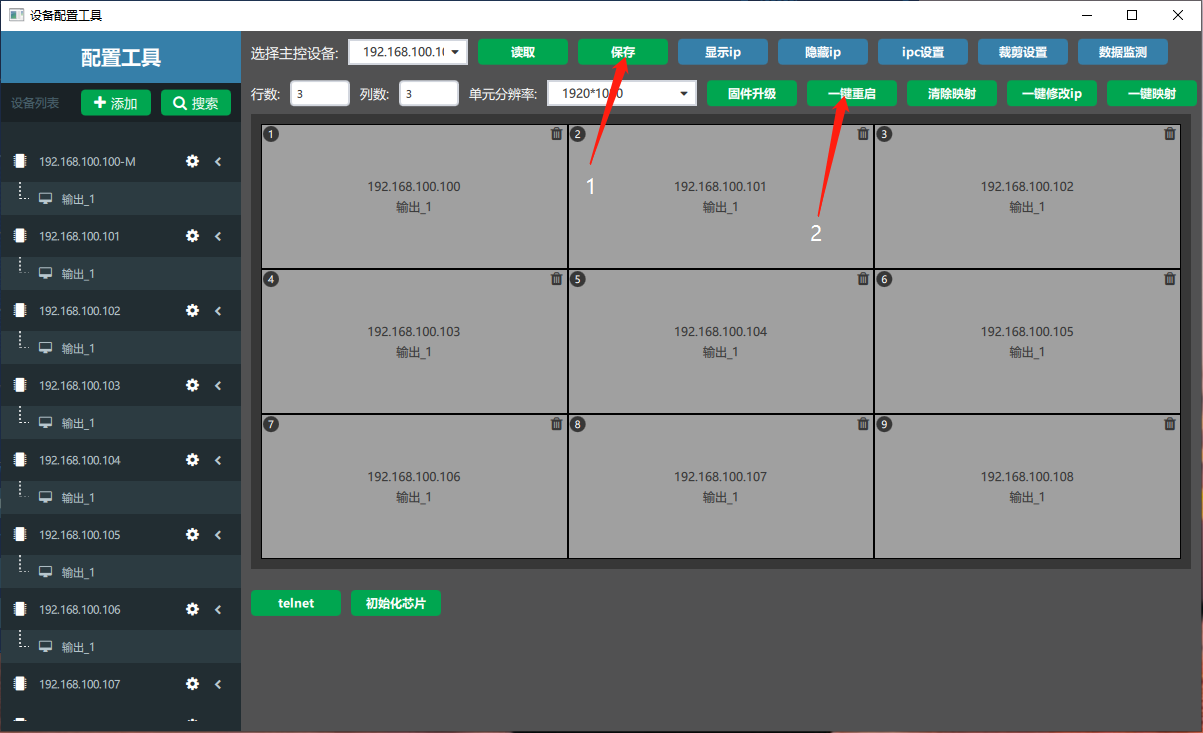
Click “搜索”(Search) in the “设备配置工具”(Device Configuration Tool) window that appears to search for the IPs of online 板卡(Card) in the local network.
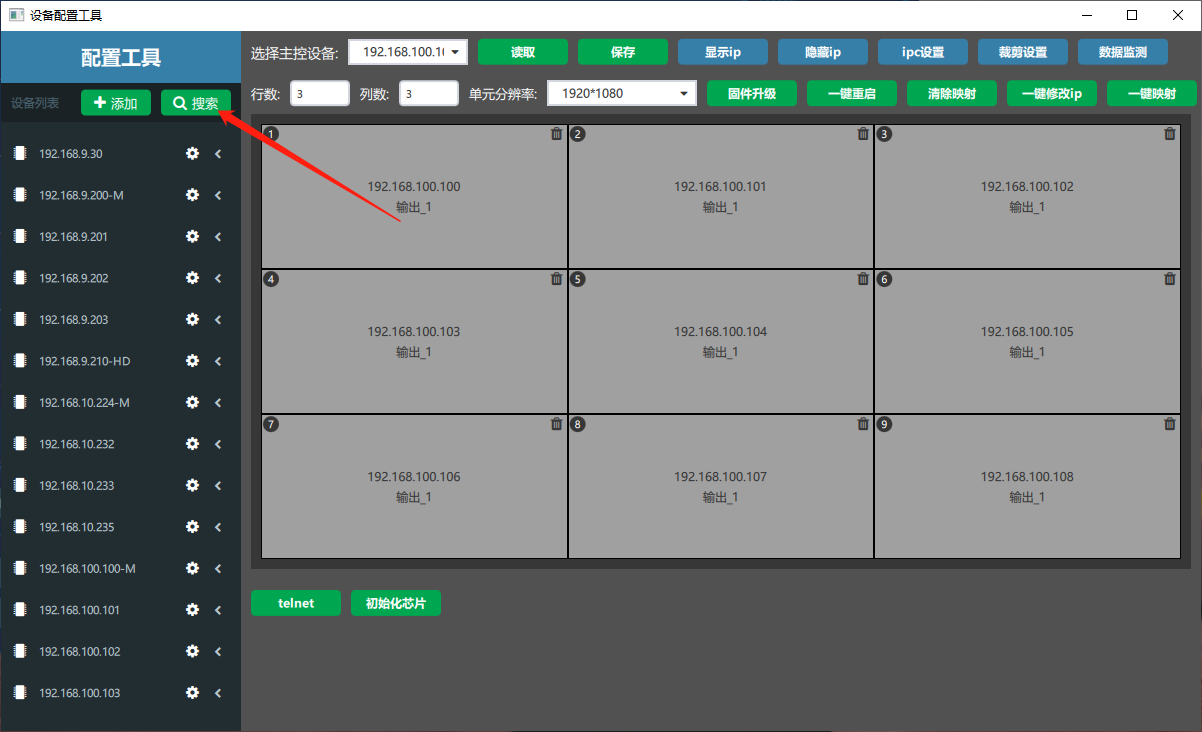
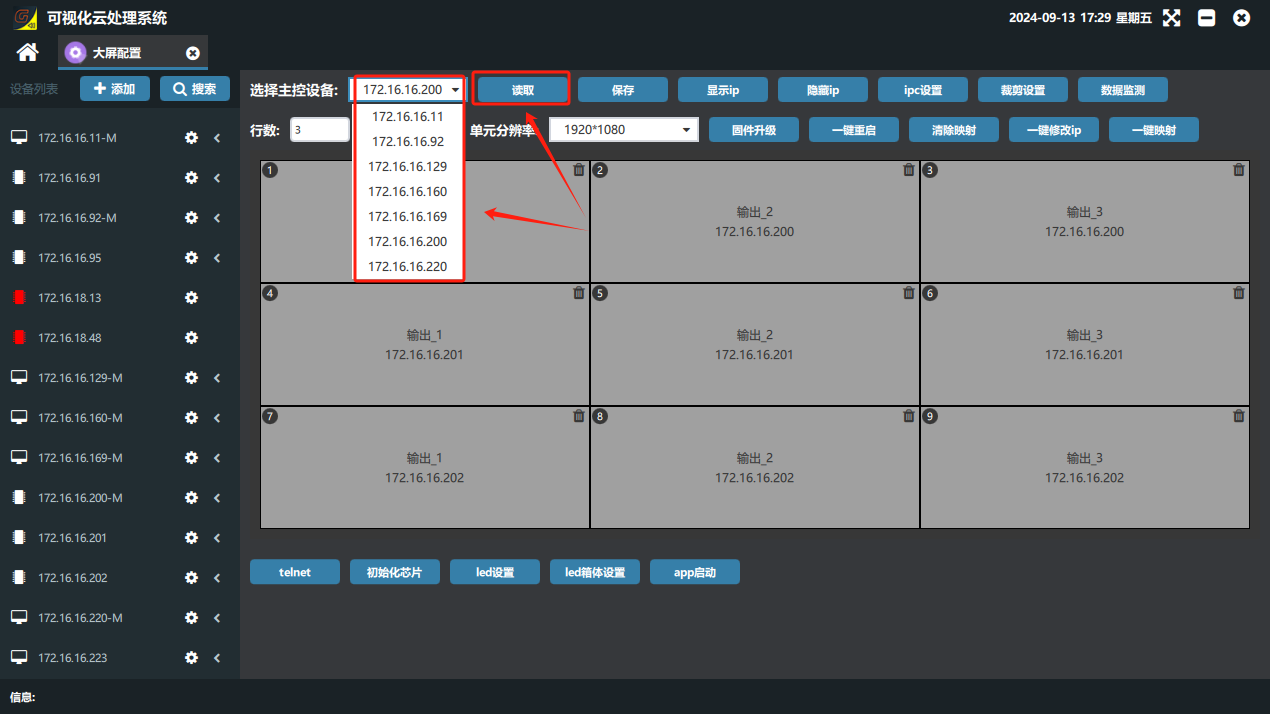
Open the “选择主控设备”(Select Main Control Device) drop-down, select the main control IP, and click “读取”(Read) to read the current output configuration of the device.
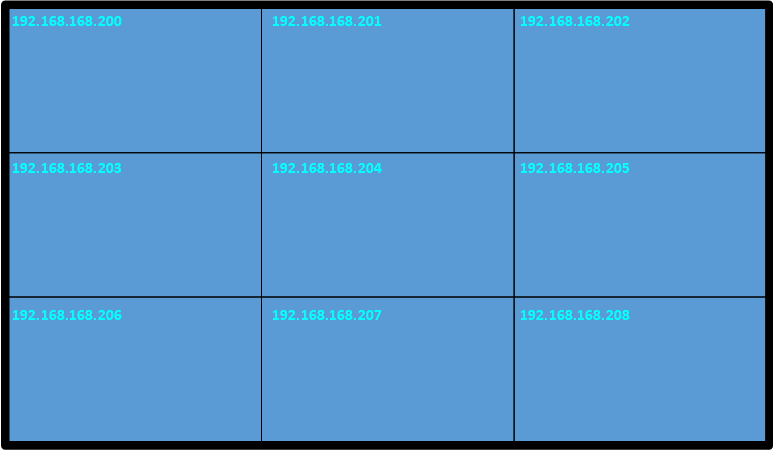
Click “显示 ip”(Show IP) and the IP of the connected card appears in the top-left corner of each screen on the video wall. (See the diagram below.)
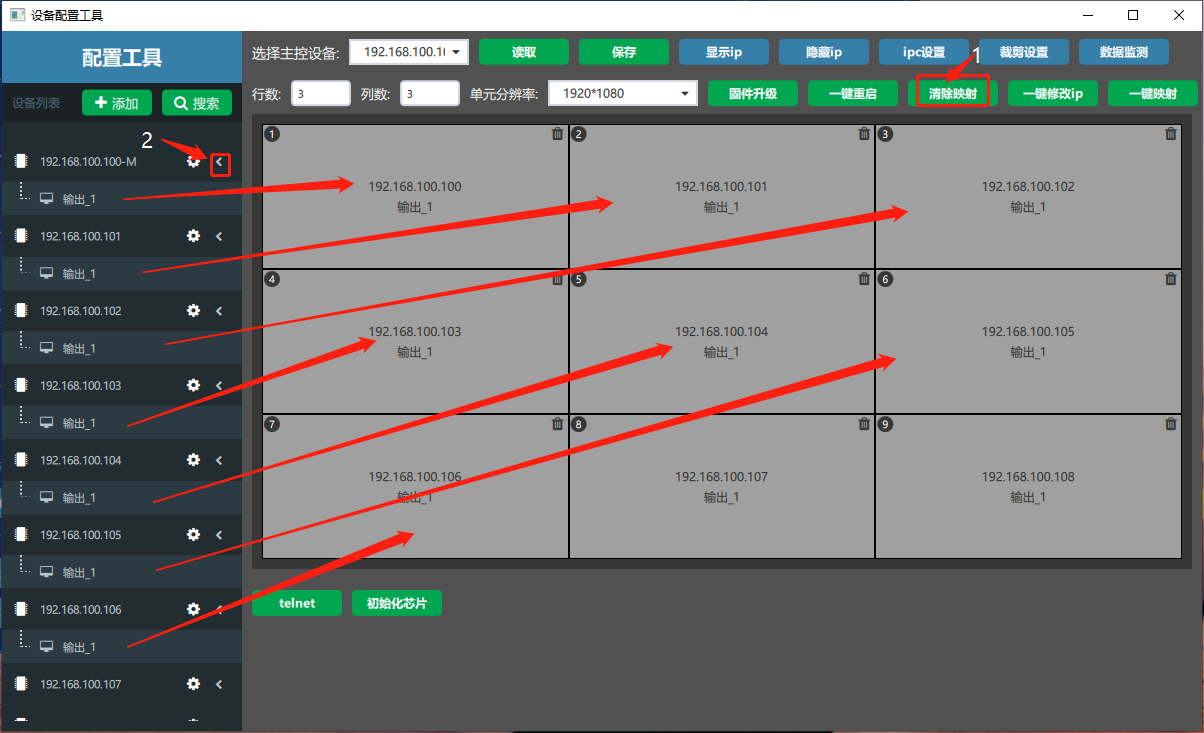
Click “清除映射”(Clear Mapping) → expand the small triangle “” after each IP in the device list → press and hold the output of each IP with the left mouse button and, according to the IP shown on the video wall, drag it to the corresponding position on the virtual display wall on the right.

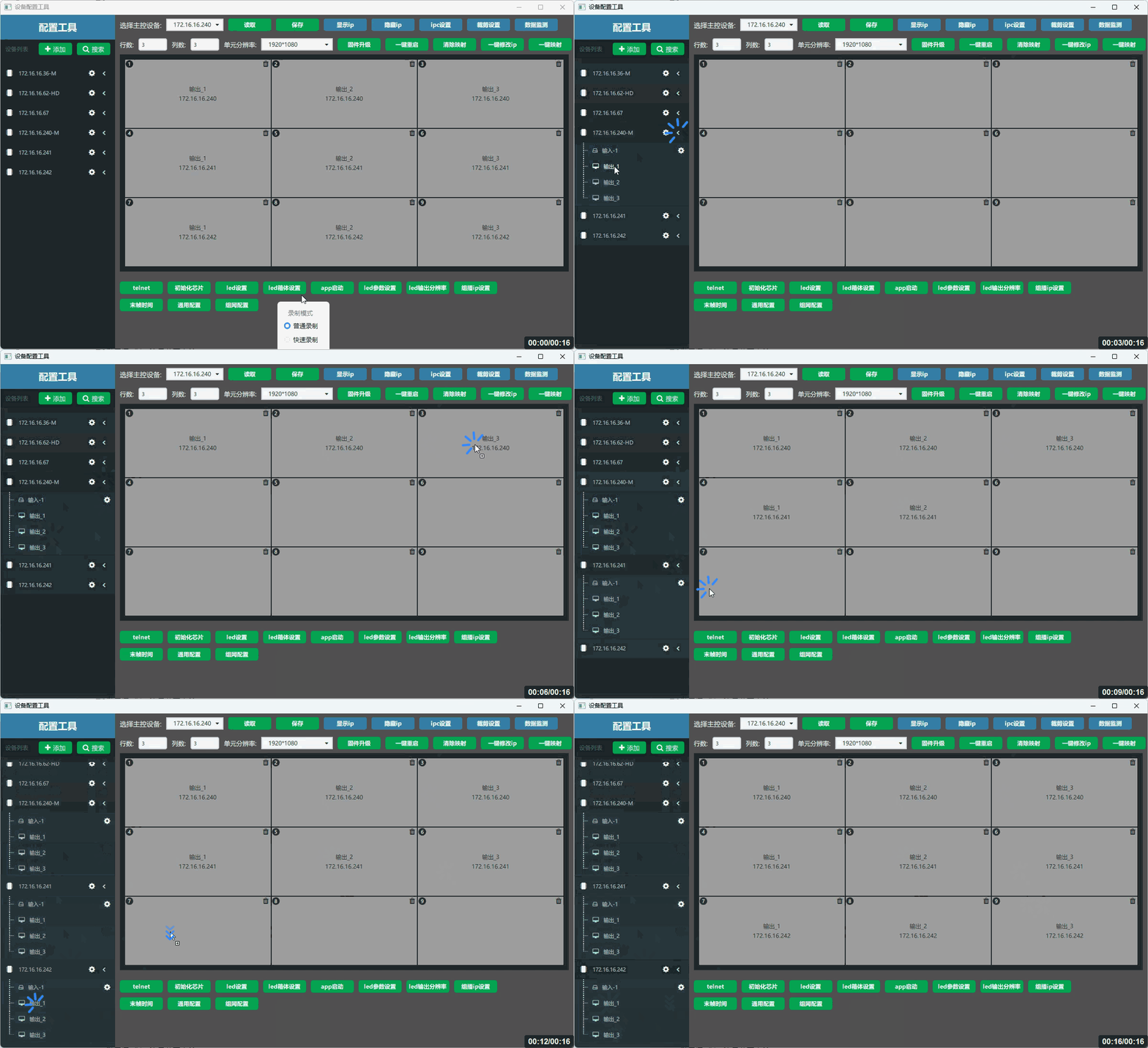
When all outputs are in place, click step by step: Save → One-click Restart. (Note: you must click One-click Restart after Save; if the device does not restart, the configuration does not take effect.)
【Important】After you click “清除映射”(Clear Mapping), the video wall displays abnormally. Never cut the power during this process; the configuration takes effect only after every output channel is placed, “保存”(Save) is clicked, and then “一键重启”(One-click Restart) is clicked.
When the device has restarted, reopen the software and log in to use it.
Did this page help you?One line of feedback helps us keep the steps accurate.